



Two-factor authentication adds a second lock to your logins, so a stolen password alone is not enough to get in. This guide shows exactly how to turn on 2FA in Google, Microsoft, and Apple accounts, which method to pick, and how to avoid being locked out.
One leaked password should not hand an attacker your whole digital life. Two-factor authentication (2FA) adds a second, separate check to your login, so a stolen password on its own is not enough to get in. The trouble is that “turn on 2FA” looks different in every app. This guide walks through how to set up two-factor authentication on the accounts that matter most — Google, Microsoft, and Apple — explains which method to choose, and shows you how to keep from locking yourself out.
What Two-Factor Authentication Actually Does
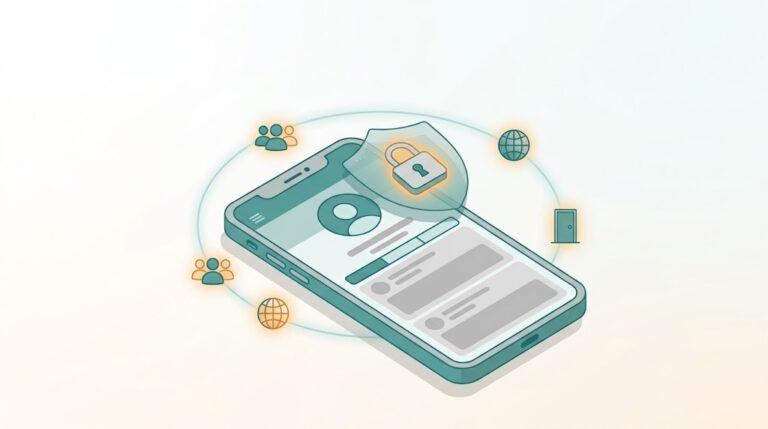
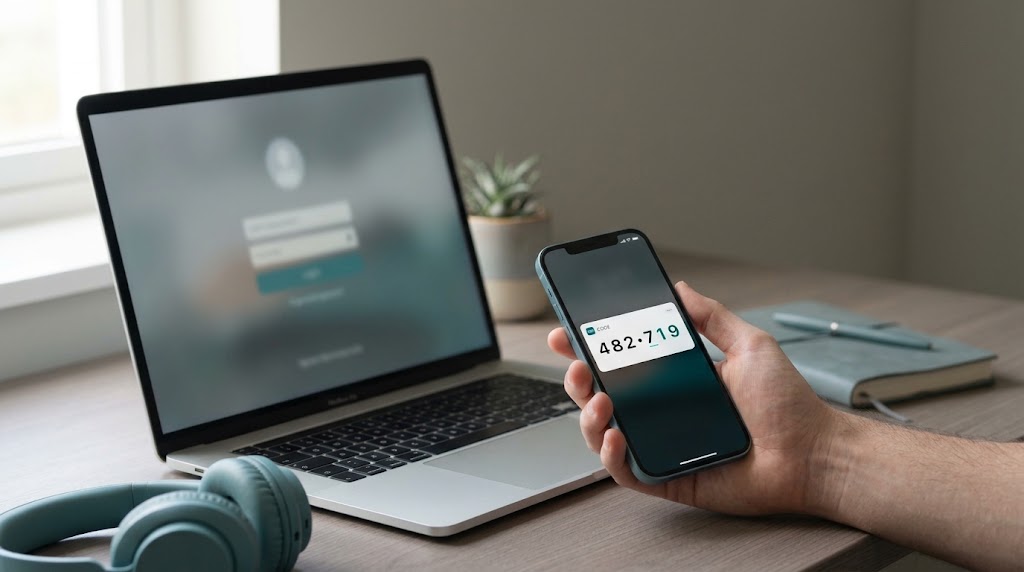
Two-factor authentication pairs something you know (your password) with something you have or are — a code on your phone, a hardware key, or a fingerprint. An attacker who buys your password from a breach dump still cannot sign in, because they do not hold the second factor.
This matters because password reuse turns one breach into many. If you are not sure whether your credentials are already exposed, start with our guide on how to check if your password was leaked, then come back here to lock the accounts down.
Not all second factors are equal. The U.S. Cybersecurity and Infrastructure Security Agency (CISA) describes some methods — like SMS codes — as vulnerable to phishing, SIM-swap, and interception, and recommends “phishing-resistant” options such as hardware security keys for high-value accounts. In practice: any 2FA is better than none, and the strongest option you can live with is the one to choose.
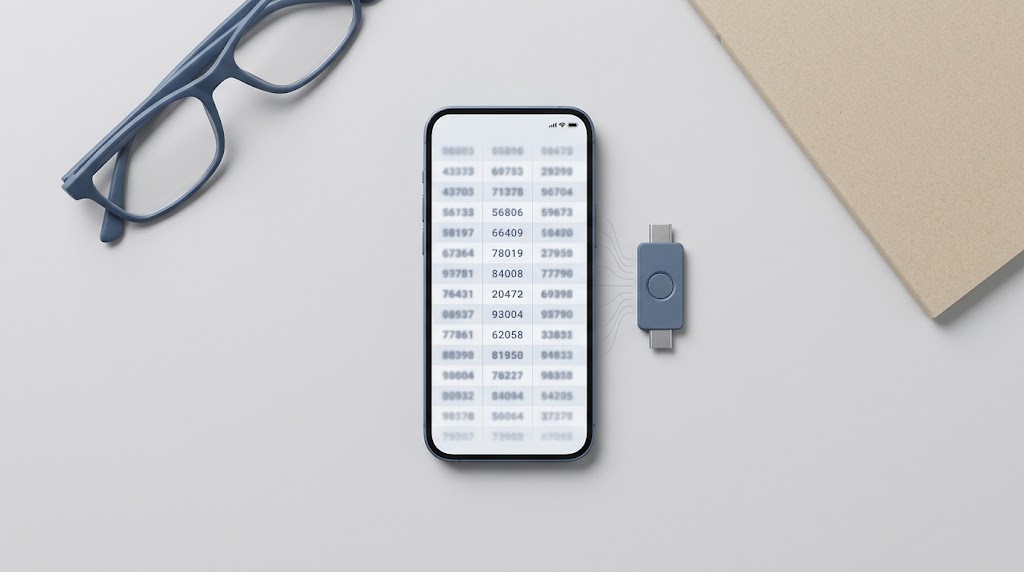
Which 2FA Method Should You Use?
| Method | How it works | Strength | Best for |
|---|---|---|---|
| Authenticator app | App generates rotating codes (TOTP) | Strong | Most accounts — good balance of security and convenience |
| Hardware security key | Physical USB/NFC key that proves you hold it | Strongest (phishing-resistant) | Email, banking, admin accounts |
| Passkey | Device-bound sign-in tied to your fingerprint or face | Strong (phishing-resistant) | Accounts that support it |
| SMS / text code | Code sent as a text message | Weakest | A fallback when nothing else is offered |
A simple rule: use a hardware key or passkey where offered, an authenticator app everywhere else, and treat SMS as a last resort. CISA’s guidance on phishing-resistant MFA is the reference to follow for accounts you cannot afford to lose.
How to Set Up 2FA on Your Google Account
Your Google account is the recovery point for dozens of other services, so secure it first.
- Go to your Google Account settings and open the Security section.
- Find How you sign in to Google and select 2-Step Verification.
- Choose Get started and sign in again when prompted.
- Pick your second step — a prompt on your phone, an authenticator app, or a security key — and follow the on-screen steps to add it.
- Finish by generating and saving backup codes (see the section below).
Once it is on, Google will ask for the second step whenever it is unsure about a sign-in, such as from a new device. Keep your recovery phone number and email current so you never lose access.
How to Turn On Two-Step Verification for Microsoft
Microsoft calls it “two-step verification,” and you manage it from your security settings.
- Sign in at account.microsoft.com and open Security.
- Select Manage how I sign in.
- Open Additional security and choose Two-step verification.
- Follow the prompts to Turn on or turn off two-step verification, and confirm your identity.
Microsoft will then ask for your second factor on unfamiliar devices and browsers.

How to Enable Two-Factor Authentication on Apple
Apple builds two-factor authentication into the Apple ID, so enabling it covers your iPhone, iPad, and Mac at once.
- On your device, open Settings and tap your name at the top.
- Tap Sign-In & Security.
- Tap Two-Factor Authentication and follow the prompts to turn it on.
- Add a trusted phone number for verification codes, and save your recovery key if offered.
Apple requires two-factor authentication for most modern Apple ID features, so turning it on also unlocks account features that need it.
Save Your Backup Codes — The Step Almost Everyone Skips
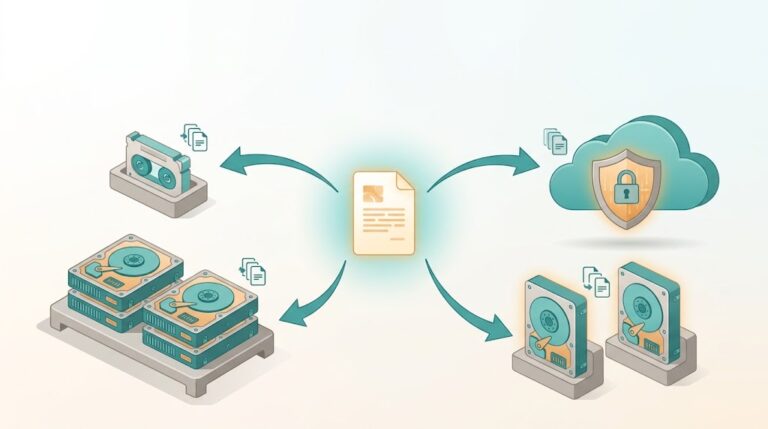
Backup codes are single-use codes that let you sign in when your phone is lost, broken, or wiped. Without them, a lost phone can mean a locked account.
- Generate backup codes immediately after enabling 2FA.
- Store them offline — a printed copy in a safe place, or a password manager’s secure notes.
- Never store backup codes in the same app or note as your password.
- Replace your codes after you use one, or once a year.
A password manager is the natural home for backup codes and the logins they protect. If you do not use one yet, that is the single highest-value upgrade before you touch 2FA settings.
Common Mistakes to Avoid
- Turning on 2FA with only one device. Add a second trusted device or number so one failure does not lock you out.
- Ignoring your recovery email. If you cannot access the recovery address, you cannot recover the account.
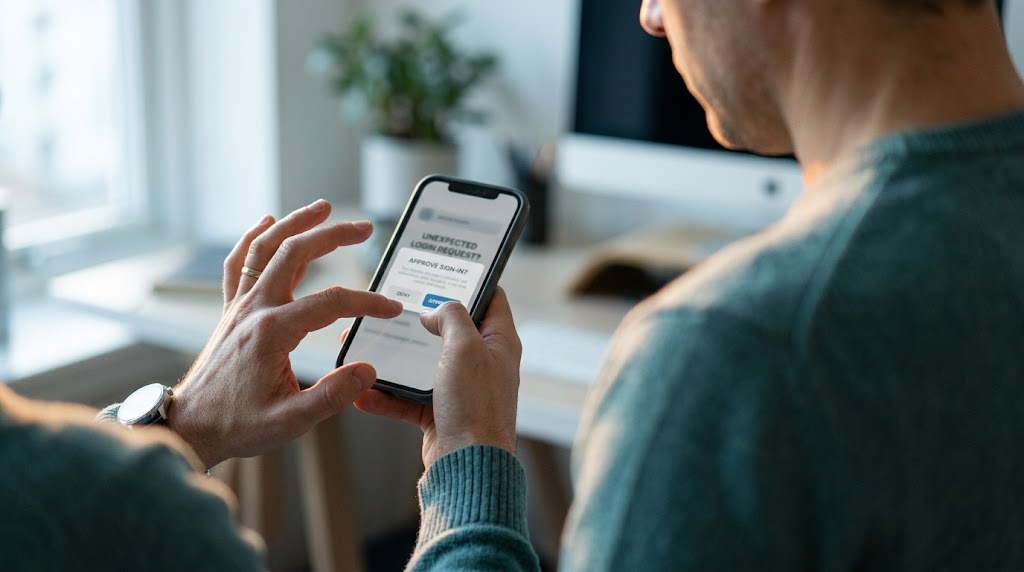
- Sharing codes. Legitimate support staff will never ask you for a one-time code. A request for your code is a hallmark of phishing.
- Stopping at email. Enable 2FA on banking, cloud storage, and social accounts too — anywhere a breach would cascade.
Put Your Home Network on the Same Security Footing
Account security starts at the device you sign in from. An unsecured router can undo much of the good work above. Review your network with our guide on how to secure your home Wi-Fi network and router — change the default admin password, update firmware, and use WPA3 or WPA2 where available.
Frequently Asked Questions
Is two-factor authentication the same as two-step verification?
They are often used interchangeably. “Two-step verification” is Microsoft’s name for the same idea — a second check beyond your password.
Is SMS 2FA better than nothing?
Yes. SMS codes are the weakest form of 2FA and can be intercepted or bypassed through SIM-swap attacks, but any second factor is still far better than a password alone. Move to an authenticator app or security key when you can.
What happens if I lose my phone?
You sign in with a saved backup code, a second trusted device, or the account’s recovery process. This is exactly why backup codes matter — generate them before you need them.
Can two-factor authentication be bypassed?
Yes. Certain attacks, including real-time phishing proxies and MFA-fatigue prompts, can trick a user into approving a sign-in. Phishing-resistant methods such as security keys raise the bar sharply, which is why CISA recommends them for high-value accounts.
The Bottom Line
Setting up two-factor authentication takes about ten minutes per account and closes one of the easiest doors attackers walk through. Start with your email, use the strongest method the account offers, and save your backup codes somewhere you can reach without your phone. Do that, and a single leaked password stops being a catastrophe.
Ready to go further? Read our step-by-step guide on checking whether your password has been leaked and fix any exposed logins today.