




Your social profiles are one of the biggest, most public surfaces you own — and most people leave the default settings exactly where they were on day one. The good news is that a single focused clean-up, plus a few everyday habits, removes most of the risk. This guide covers what to lock down, how […]
Your social profiles are one of the biggest, most public surfaces you own — and most people leave the default settings exactly where they were on day one. The good news is that a single focused clean-up, plus a few everyday habits, removes most of the risk. This guide covers what to lock down, how you are tracked, how to secure the account itself, and how to stop oversharing for good.
Why Social Media Privacy Matters More in 2026
Everything you post, like, and log into trains systems that decide what you see and, in many cases, what you are advertised. Posts can also be scraped, captured in screenshots, or used to answer security questions and impersonate you. And because a profile is often the front door to your other accounts, a weak privacy and security setup there can quietly put your email, photos, and identity at risk. The goal is not to disappear — it is to decide, deliberately, who can see what, and to make the account itself hard to take over.
Start With Who Can See What (Audience Settings)
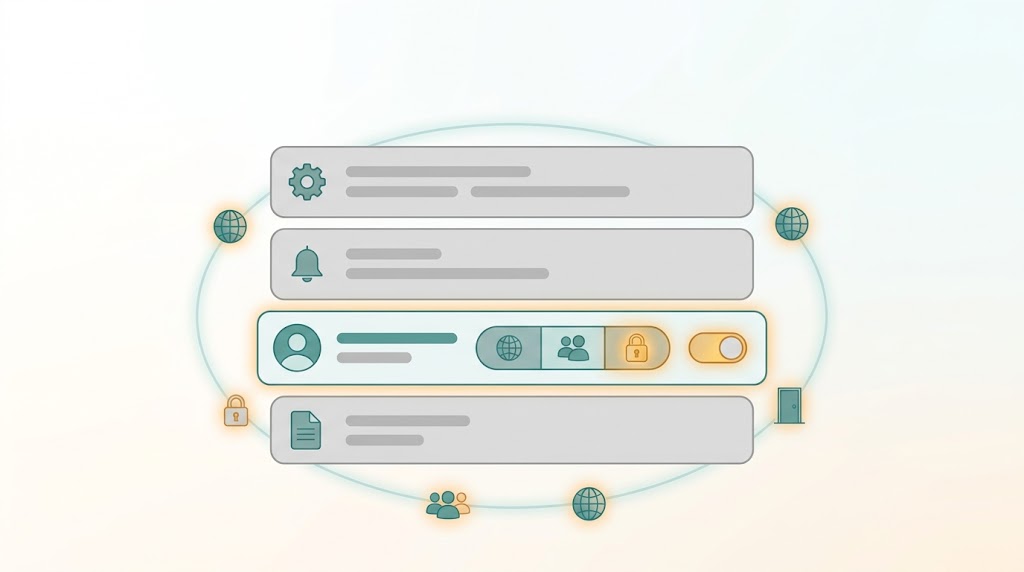
Almost every platform has an “audience” concept: friends / followers / public, plus options like a close-friends list. This is the master control and the first thing to review.
- Set your default audience to only people you approve, not public.
- Review the audience on old posts too — a past post set to public stays public.
- Lock down friend/follower requests so only people who already know you can reach you.
- Turn off discovery by phone number and email address so strangers cannot look you up with a contact list.
Facebook & Instagram: the Settings That Matter
Both apps are controlled from the same Settings & privacy area. In 2026 these menus move and get renamed often, so treat the items below as the categories to find and confirm in-app — the exact wording and location may differ on your device or app version.
- Audience and tagging — who can see future posts, and approval before a tag appears on your profile.
- Story and reel visibility — restrict who sees stories and whether they can be shared or re-shared beyond your audience.
- Activity status — whether people can see when you are online.
- Ad preferences — adjust how advertisers can target you using data from partners, and review the “off-Facebook / off-Instagram activity” list.
- Data and searchability — stop your profile appearing in search engines, and limit who can send you messages.
- Apps and websites — the list of third-party apps connected to your account (see the audit section below).
Confirm these in-app: Meta’s settings names and locations change frequently, and they can vary by region and by the app or desktop version you use.
X: Locking the Account to People You Choose
X keeps privacy and security in a dedicated Settings and privacy > Privacy and safety section. Review audience and discovery first, then protect the account itself.
- Protect your posts if you want only approved followers to see them.
- Photo tagging — set it to only people you follow, or turn it off.
- Discoverability and personalization — turn off “find you by email/phone” and limit ads personalization.
- Direct messages — restrict who can message you, and leave the “message requests” filter on.
TikTok: Privacy Controls
TikTok groups these under Settings and privacy > Privacy. The controls to review are account privacy (a private account requires you to approve followers), who can comment, duet and stitch, who can direct-message you, and whether your content can be downloaded. Also review personalization and data for ad and content personalization.

Stop Oversharing: Photos, Location & Metadata
The biggest privacy leaks are the things you choose to post. A few habits close most of them:
- Post location after the fact. Do not tag your home, school, or workplace — and turn off automatic geotagging in the camera app.
- Strip photo metadata before public uploads. Photos can carry GPS and device data; most platforms strip it on upload, but files you send directly (or host yourself) may not.
- Watch the background. Addresses, documents, screens, and keys show up in “casual” photos.
- Do not broadcast your schedule. “Away for two weeks” is a burglary invitation; share trips after you are home.
- Guard security-question answers. Your mother’s maiden name and first pet are often visible in old posts.
How You Are Actually Tracked
Privacy is not only about who sees your feed. The U.S. Federal Trade Commission (FTC) explains that sites and apps track you through cookies, tracking pixels, device fingerprinting, and advertising identifiers, and that tracking comes in two flavours: first-party (the site you are on) and third-party (outside companies, often advertisers, that follow you across sites). Understanding this makes the “reduce tracking” steps below make sense.
Reduce Tracking: Steps That Work
- Clear your browsing history and cookies regularly — the FTC lists this as a basic step.
- Reset your advertising ID in your phone’s privacy settings to break the link to your past activity.
- Know that private/incognito mode does not stop tracking. The FTC is explicit: it hides your history on your device but does not prevent sites from tracking you.
- Use your browser’s tracking controls (Safari, Chrome and Edge all publish their own guidance on site-tracking and ad settings).
- Opt out of personalized advertising where offered in your account settings.
- Use an ad blocker or anti-tracking browser extension to limit tracking pixels and ads.
- Read cookie notices and decline non-essential cookies where you can.
- Use the industry opt-out tools: the Digital Advertising Alliance’s AdChoices at youradchoices.com/control and the Network Advertising Initiative at optout.networkadvertising.org.
Audit Your Third-Party App Access
Every “log in with…” you have ever tapped gave an outside app permission to read part of your profile. Over the years these pile up, and a forgotten one is a silent data leak if that service is later breached.
- Open the apps connected to your account list on each platform.
- Remove anything you do not recognise or no longer use.
- For the ones you keep, review what they can access and downgrade where possible.
- Repeat once or twice a year, and after any news of a breach.

Secure the Account Itself
Privacy fails if someone else gets in. These habits, drawn from X’s own account-security guidance and CISA, stop most takeovers:
- Use a strong, unique password — CISA’s advice is at least 16 random characters, or a passphrase of four to seven unrelated words.
- Use a password manager so every account has a different password you do not have to memorise.
- Turn on two-factor authentication (2FA) — an app or hardware key is stronger than text-message codes.
- Check the web address before logging in, and only sign in on the official app or site.
- Never share your password — real platforms never ask for it by message or email.
- Turn on login and new-email alerts so you hear about a break-in immediately.
- Update your browser and apps so known holes are patched.
If you are unsure whether an account has already leaked, run our password-leak check guide, and if a message pressures you to click, compare it against our phishing email examples.
Two Special Cases Worth Knowing
- Children under 13: the FTC explains how the Children’s Online Privacy Protection Act (COPPA) limits what sites and apps may collect from under-13s, and how to protect a child’s privacy online. If your household includes young kids, review app permissions and account settings with them.
- Unvetted ads: in August 2026 the FTC warned consumers about ads on social media that have not been vetted and may be scams. Treat sponsored posts promising fast money, prizes, or huge discounts with extra caution — and never hand over login details or payment info to one.
A Monthly 15-Minute Privacy Check
- Set (and re-check) your post audience to non-public.
- Turn off phone/email discoverability and location tagging.
- Review connected apps and remove the ones you do not use.
- Confirm 2FA is on and your password is unique.
- Clear cookies and reset your advertising ID.
- Skim your last month of posts for anything that reveals location, routine, or private details.
FAQ
Do private or incognito tabs keep me private on social media?
No. Private browsing hides your local history but, as the FTC notes, does not stop sites and trackers from following you.
Is a private account really private?
It limits who sees your posts, but the platform still holds your data, DMs, and activity, and anyone you approve can screenshot or share what you post. Treat it as “approved audience,” not “secret.”
What is the single most important setting?
Your default post audience. If it is public, everything else is downstream of that.
Why do the same steps not match my app?
Menu names and locations change between platform versions and regions. Use the categories in this guide and confirm the exact wording in your own app.
Final Thoughts
You do not need to quit social media to protect your privacy. Set your audience to non-public, strip location and metadata, cut the tracking where you can, audit connected apps, and lock the account down with a unique password and 2FA. Then repeat the 15-minute check monthly — small, regular clean-ups beat one heroic effort.
Sources
- U.S. Federal Trade Commission — Protecting Your Privacy Online (cookies, pixels, fingerprinting, advertising IDs; private browsing; opt-out steps and industry tools): consumer.ftc.gov — Protecting Your Privacy Online
- U.S. Federal Trade Commission — Protecting Your Child’s Privacy Online (COPPA, under-13): consumer.ftc.gov — Protecting Your Child’s Privacy Online
- U.S. Federal Trade Commission — consumer alert on unvetted social media ads (August 2026): consumer.ftc.gov — Are those ads vetted?
- X Help Center — Account security tips: help.x.com — Account security tips
- TikTok Support — Account and privacy controls: support.tiktok.com — Account and privacy
- CISA — Use strong passwords: cisa.gov — Use Strong Passwords
Related Guides on Dhanutech