





Digital clutter does not just feel heavy — it slows your devices, hides what matters, and quietly puts your privacy at risk. This 2026 guide gives you a calm, step-by-step plan to clear files, inboxes, apps, and old accounts.
Digital clutter is invisible, which is exactly why it piles up. Thousands of photos you never look at, an inbox with four unread badges, apps you have not opened in a year, and accounts on sites you barely remember joining. None of it is dramatic on its own — together it slows your devices, hides the files you actually need, and quietly raises your privacy risk.
And it is not just inconvenient. Dormant accounts on old sites are a commonly cited security risk — leaving them active widens your exposure, which is why cleaning them up is a security win, not just a tidy-up. (UNVERIFIED: this is general best-practice guidance; no specific statistic was fetched.) Here is a calm, practical plan you can run over a few weekends.
Why Digital Decluttering Is Worth It
- Speed. A full drive slows backups and searches; a bloated phone slows down.
- Focus. Fewer apps and notifications mean less distraction.
- Privacy and security. Every account you no longer use is a door you have left unlocked. Closing dormant accounts shrinks your attack surface.
- Peace of mind. Knowing where your files and important documents live removes low-level background stress.
The Rule That Makes This Manageable
Do not try to do everything at once — that is how decluttering projects die. Instead, work in small, themed blocks. One area per session, with a short finish line. The plan below splits the job into six blocks you can spread across two or three weekends.
Block 1: Files and Documents
Start where the clutter is physically real: your files.
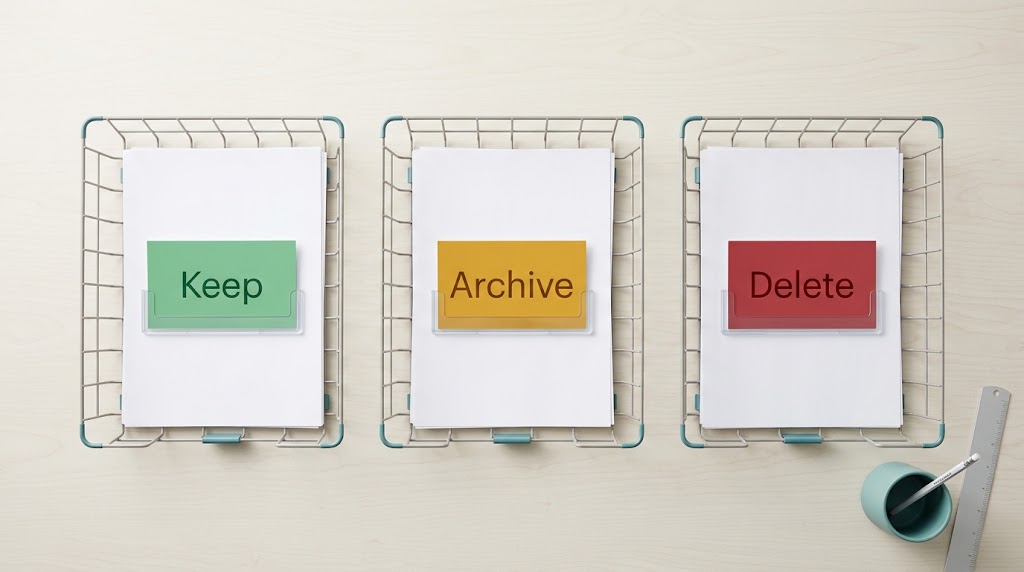
- Create three folders: Keep, Archive, Delete.
- Sort by date, not by feeling. Anything untouched in years goes to Archive, not Keep.
- Delete duplicates. Photo and document apps usually have a “find duplicates” tool; use it.
- Name files consistently (for example,
YYYY-MM-DD-topic) so search works.
If losing files worries you, that fear is the real signal — get a backup system in place before you delete anything, so you can clean up without risk. Our plain-English guide to the 3-2-1 backup rule explains how to keep three copies, on two types of media, with one off-site.
Block 2: Your Inbox
You do not need “inbox zero” to feel the benefit — you need fewer decisions per day.
- Unsubscribe from the five newsletters you actually never read (use the unsubscribe link at the bottom of each).
- Archive everything older than a year in one sweep; you can still search it.
- Create three simple labels or folders: Action, Waiting, Reference.
- Turn off push notifications for anything that is not a real message to you.
Block 3: Photos and Videos
Photos are usually the largest single category of digital clutter.
- Delete screenshots, duplicates, and accidental shots first — they are the easiest wins.
- Sort into albums by year, then by event, only for the ones you keep.
- Move anything you want long-term into your backup, not just your phone.

Block 4: Apps and Notifications
- Uninstall apps you have not opened in three months.
- For the ones you keep, review their permissions — revoke access they do not need.
- Turn off non-essential notifications. Fewer pings, calmer days.
Block 5: Accounts and Subscriptions
This is the block with the biggest security payoff.
- List your accounts. Check your password manager’s vault, and search your email for “welcome” and “verify your account” to find ones you have forgotten.
- Delete the ones you do not need. Most sites bury “delete account” in settings; if you cannot find it, search the site’s help centre for “delete account”.
- Cancel unused subscriptions. Scan your bank statement for recurring charges; recurring small charges add up fast.
- Fix weak or reused passwords while you are in there — a single reused password is the most common way one breach becomes many.
If you are tightening up social accounts too, our guide to protecting your privacy on social media in 2026 walks through the settings worth changing.
Block 6: The Archive Habit
Decluttering is not a one-time event. Keep it clean with a light monthly habit:
- Five minutes: clear screenshots and downloads.
- Ten minutes: unsubscribe from new email clutter.
- Once a quarter: review subscriptions and permissions.
If you want one place for notes, plans, and reference files, see our comparison of Notion vs Obsidian to pick a home that suits how you think.

Exporting Your Data Before You Go
Before deleting an account you may want a copy of your data. Google lets you download your data through its “Download your data” (Takeout) tool: you choose the products to include, pick a delivery method (a download link by email, or direct to Drive, Dropbox, or OneDrive), and create the export.
One important detail: downloading your data does not delete it from Google’s servers. The export and the deletion are two separate actions. If your goal is to remove the data, you still need to delete it or delete the account afterwards.
Frequently Asked Questions
How long does it take to declutter your digital life?
With themed blocks, most people can make a visible difference in two or three weekends, then keep it clean with a short monthly habit.
Should I delete old accounts I no longer use?
Yes — dormant accounts are a commonly cited security risk, so deleting what you do not need is good hygiene (UNVERIFIED: general best-practice guidance; no specific statistic was fetched). Secure what you keep with unique passwords and 2FA.
What should I back up before deleting files?
Anything irreplaceable — especially photos and documents. Follow the 3-2-1 rule so you always have an off-site copy before you delete.
Does downloading my Google data delete it?
No. Google’s “Download your data” tool creates an export; it does not remove the data from Google’s servers. Deletion is a separate step.
The Bottom Line
Digital decluttering is not about minimalism for its own sake — it is about speed, focus, and closing doors you forgot were open. Back up first, work in small themed blocks, and protect what you keep. Start with one folder and one forgotten account today.