



Almost everyone who uses email has a password or an email address sitting in a data breach somewhere. Have I Been Pwned (HIBP), a free breach-notification service, was tracking 1,043 breached websites and 17,845,484,926 breached email addresses as of 2026-10-11 (haveibeenpwned.com — a live figure that changes daily). That number sounds alarming, but it is […]
Almost everyone who uses email has a password or an email address sitting in a data breach somewhere. Have I Been Pwned (HIBP), a free breach-notification service, was tracking 1,043 breached websites and 17,845,484,926 breached email addresses as of 2026-10-11 (haveibeenpwned.com — a live figure that changes daily). That number sounds alarming, but it is not a reason to panic. It is a reason to check, in about two minutes, and to fix anything that turns up.
This guide shows you the three fastest free ways to check whether a password or email has been leaked, how to read the results honestly, and exactly what to do next if you have been caught in a breach.
Why your password might already be out there
What a “data breach” actually is
A data breach is an incident where a company’s systems are broken into and data — often email addresses, usernames, and passwords — is stolen and later shared or sold. HIBP defines a breach simply as a service’s data being exposed and then loaded into its database of compromised accounts (HIBP FAQs). You do not need to have done anything wrong for your details to appear: someone else’s weak security was enough.
Why reusing a password turns one leak into many
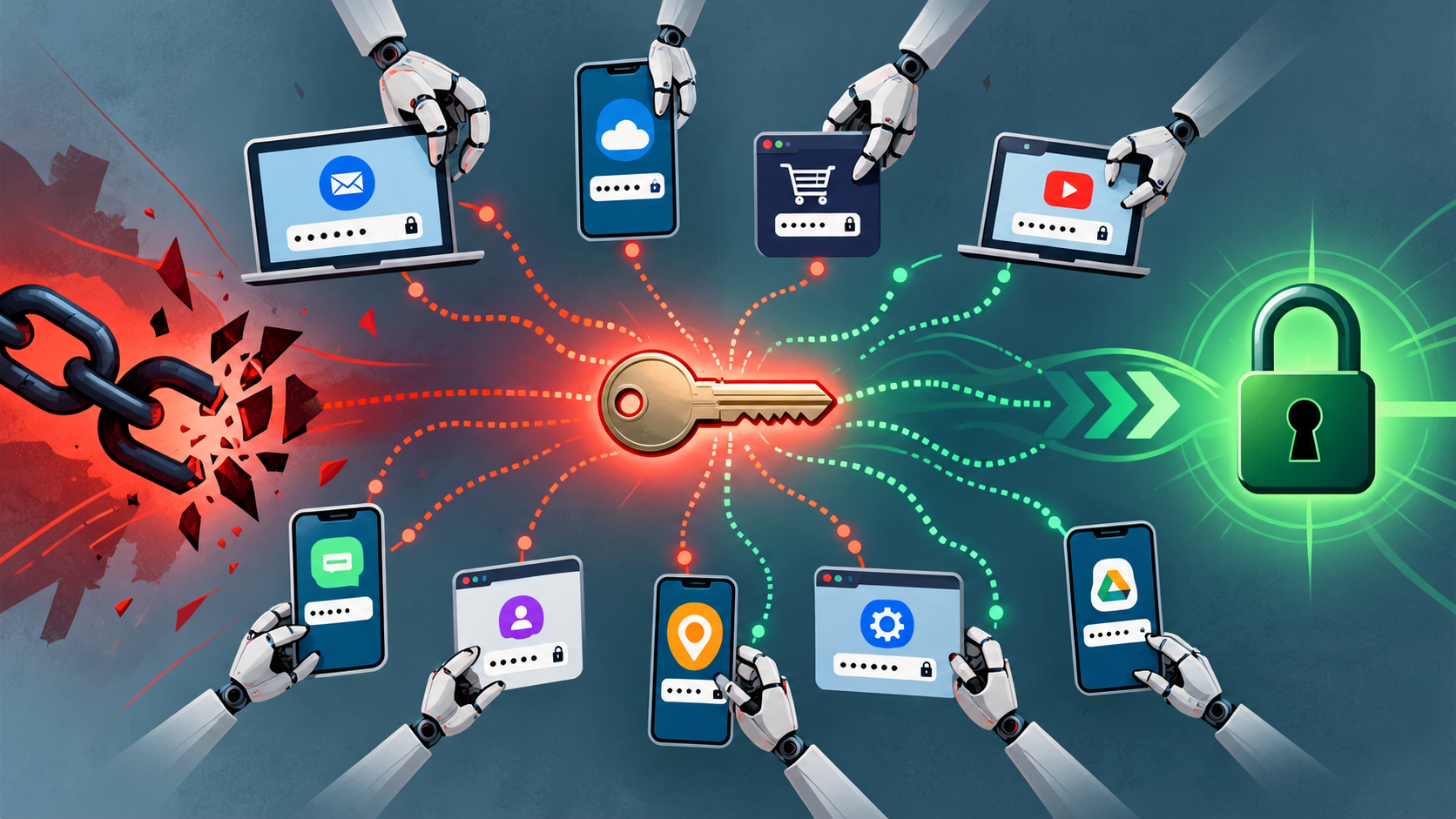
The real danger is not one breached site — it is what attackers do with the stolen logins. This pattern is called credential stuffing (MITRE ATT&CK technique T1110.004): criminals take username-and-password pairs leaked from one service and try the same combinations on other, unrelated services, because many people reuse the same password everywhere (CISA). One leak is reusable ammunition against every account that shares that password. Change the reuse, and you break the chain.
How to check if your password was leaked (3 free methods)
Method 1 — Have I Been Pwned: Pwned Passwords
HIBP runs two separate services: one for email addresses and one for passwords. The password tool, Pwned Passwords, lets you type a password and see whether it has appeared in a known breach. It exists specifically because security guidance (NIST, below) tells services to screen new passwords against lists of breached ones (haveibeenpwned.com/Passwords).
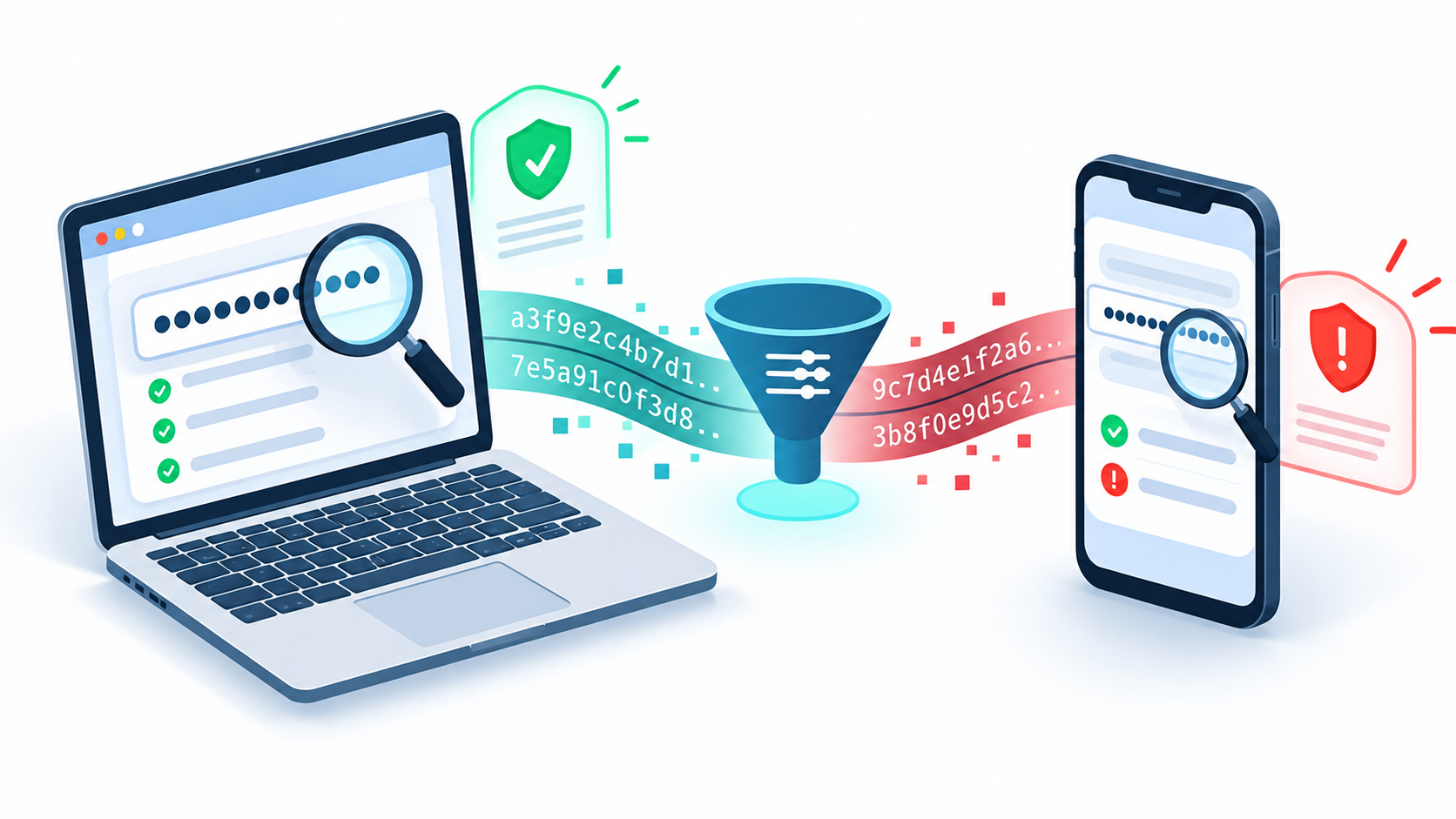
HIBP protects your input using k-anonymity. For a password, the site hashes what you type with SHA-1, sends only the first 5 characters of that hash to its API, and receives back all matching hash suffixes — so your full password, and its full hash, are never transmitted (HIBP API v3).
Method 2 — Google Password Checkup
If you save passwords in Chrome or a Google Account, Google Password Checkup reviews them automatically and sorts them into three states: Exposed (found in a breach), Weak, and Reused (used on more than one account). You can start it directly at passwords.google.com/checkup/start; it works from Android, Chrome, and other browsers (Google Account Help). Google’s own Chrome Safety Check (Settings → Privacy and security → Safety check) runs the same kind of review for passwords saved in Chrome (Chrome Help).
Method 3 — Your browser and device password manager (Chrome, Edge, Safari, Firefox)
Your browser already has a built-in checker, so there is usually nothing extra to install. Edge’s Password Monitor checks saved passwords against a database of leaked credentials and warns you; you can run Scan now under Settings → Passwords and autofill → Microsoft Password Manager → Password security check (Microsoft Support). On Apple devices, Password Monitoring (Settings → Passwords → Security Recommendations) checks the saved keychain against a curated list of roughly 1.5 billion leaked passwords using private set intersection, so Apple never learns your passwords (Apple Platform Security). Firefox’s password manager can warn you about saved logins whose site was involved in a breach, and that check runs on your device — it does not send your passwords anywhere (Mozilla Support).
One common mix-up worth clearing up: there is no separate built-in “leaked password” checker in Windows itself. On Windows PCs, the check happens inside Edge (Password Monitor) or on your Microsoft account security dashboard — not as a standalone Windows tool (Microsoft Support).
How to check if your email was in a data breach
The other half of the picture is your email address. Enter it at haveibeenpwned.com and HIBP lists every breach it knows of that included that address. This is an email search — it is a separate service from the password check above and returns a different kind of answer.
Reading your breach timeline and what each entry means
Each result tells you which service was breached, roughly when, and which data categories were exposed (for example email addresses, passwords, or phone numbers). Read it for two things: which accounts are affected, and whether a password was among the exposed data. If a password was exposed, treat that password — and every account that reuses it — as compromised.
What HIBP does and does not store
HIBP explicitly does not store passwords alongside email addresses. Every password in Pwned Passwords is stored only as a SHA-1 hash, and the email search uses k-anonymity too, sending only the first 6 characters of a hashed email rather than the address itself (HIBP FAQs; API v3).
Crucially, remember the limit of any checker: HIBP itself notes that absence of evidence is not evidence of absence. A clean result does not prove a password was never exposed — it only means it did not appear in the breaches HIBP has loaded (HIBP FAQs).
What to do if your password was leaked (step-by-step)
Change the password on the affected account first
Start with the account whose password appeared in the breach. Set a new, long, unique password — ideally one you have never used anywhere else. Because reuse is what makes credential stuffing work, the priority is to break that reuse, not to change passwords on a calendar (CISA).
Change it everywhere it was reused
Next, change every other account that shared the leaked password. This is the step people skip, and it is the one that matters most — attackers will try the leaked pair across many sites automatically (CISA). While you are there, give each account its own unique password so a future leak cannot cascade.
Turn on multi-factor authentication (MFA)
MFA adds a second proof of identity, so a leaked password alone is no longer enough to get in. CISA rates the options clearly: SMS and voice codes are the weakest, while phishing-resistant methods such as FIDO/WebAuthn security keys and passkeys are the strongest (CISA — More than a Password). Turn MFA on everywhere it is offered, and prefer app-based or hardware-key options over text messages.
Sign out of active sessions and review account activity
After changing a password, sign out of active sessions on other devices so an intruder cannot stay logged in, and review recent activity for anything you do not recognise (Google Account Help). On a Microsoft account, also inspect your account settings — connected apps, forwarding rules, and automatic replies — because an intruder may have changed them. Microsoft’s own order of operations is worth copying: clear your PC of malware first (run a full scan), then change the password, then audit your settings (Microsoft Support).

How to make your passwords leak-proof going forward
Use a password manager to create unique passwords
A password manager generates and remembers long, random, unique passwords for every account, so a breach of one site never unlocks another. It also frees you from the old habit of changing passwords on a fixed schedule. NIST’s digital-identity guidance now states that passwords shall not be required to be changed periodically without cause; instead, services should screen passwords against lists of compromised ones (NIST SP 800-63B, dated 2025-08-26). In other words, change a password when there is a reason — a leak, a suspicion, a reused old one — not just because 90 days have passed. NIST also recommends a minimum length of 15 characters for single-factor passwords, so longer and unique beats shorter and complex.
Use passkeys / phishing-resistant sign-in where offered
Where a site offers passkeys or a security key instead of a password, take it. These are phishing-resistant credentials that cannot be typed into a fake login page, and CISA places them at the strongest tier of MFA (CISA). For everyday users, adopting passkeys on your email and banking accounts removes the single most common way accounts get taken over.
Set up breach alerts so you find out early
You do not have to remember to check manually. HIBP and other services will email you when your address appears in a new breach: HIBP’s email notification is the original of these (haveibeenpwned.com), and Mozilla Monitor (formerly Firefox Monitor) also checks an address against known breaches and sends alerts (monitor.mozilla.org). Signing up means you hear about a leak from the service — not from a scammer. If you want to run your security habits alongside your other daily tooling, our guide to AI tools that improve productivity at work in 2026 covers a few apps that make recurring chores like this easier to stay on top of.
Frequently asked questions
Is checking my password on these sites safe?
With the tools recommended here, yes. HIBP’s password check uses k-anonymity, sending only the first five characters of a hash, so the full password is never transmitted (HIBP API v3). Apple’s Password Monitoring uses private set intersection so Apple never learns your passwords, and Firefox’s breach check runs locally on your device. Avoid any “password checker” that asks you to type your full password into a plain web form with no explanation of how it handles your data.
Can a leaked password be “un-leaked”?
No. Once a password is in a breach dataset, it can circulate for years. You cannot recall it — but you can make it worthless by changing it and by not reusing it anywhere else. That is why unique passwords and MFA matter more than trying to hide an old one.
How often should I check?
There is no fixed schedule to obey, and you should not rotate passwords just to hit a deadline. A practical approach is to check after news of a major breach, whenever a service emails you an alert, and once a routine moment a year as a tidy-up. Then act when something is actually found.
Summary / quick checklist
- Check your password on Pwned Passwords, or run Google Password Checkup / your browser’s built-in scan.
- Check your email at haveibeenpwned.com and read which accounts and data types were exposed.
- Change any leaked password — and every place the same password was reused.
- Turn on MFA, preferring passkeys or a security key over SMS where possible.
- Sign out other sessions and review recent account activity and settings.
- Move to unique passwords via a password manager, and stop rotating passwords on a schedule.
- Switch on breach alerts so you hear about the next leak early.
Sources consulted for this guide: Have I Been Pwned (home, Pwned Passwords, FAQs, API v3); Google (Password Checkup, Chrome Safety Check, Chrome password protection); Apple Platform Security (Password Monitoring); Microsoft Support (Edge Password Monitor, recover a compromised account); Mozilla (Firefox breach alerts, Mozilla Monitor); CISA — More than a Password; CISA / MITRE T1110.004; NIST SP 800-63B.