




What Are Passkeys? A Plain-English Guide (and How to Set One Up)
Table of Contents
Key takeaways
- A passkey replaces your password with a login that is unlocked by your own device — your face, fingerprint, screen-lock PIN, or a security key.
- There is nothing to type and nothing to steal, so a passkey cannot be phished the way a password can.
- Google, Microsoft and Apple all support passkeys today; creating one takes about a minute.
- Your biometric data stays on your device — the site you sign in to never sees it.
- Passkeys do not replace passwords everywhere yet. Keep your password manager for the sites that have not caught up.
What are passkeys, in plain English?
You have probably seen the term “passkey” while signing in somewhere and quietly ignored it. It is worth a minute of your time, because a passkey is the closest thing the industry has come to retiring the password.
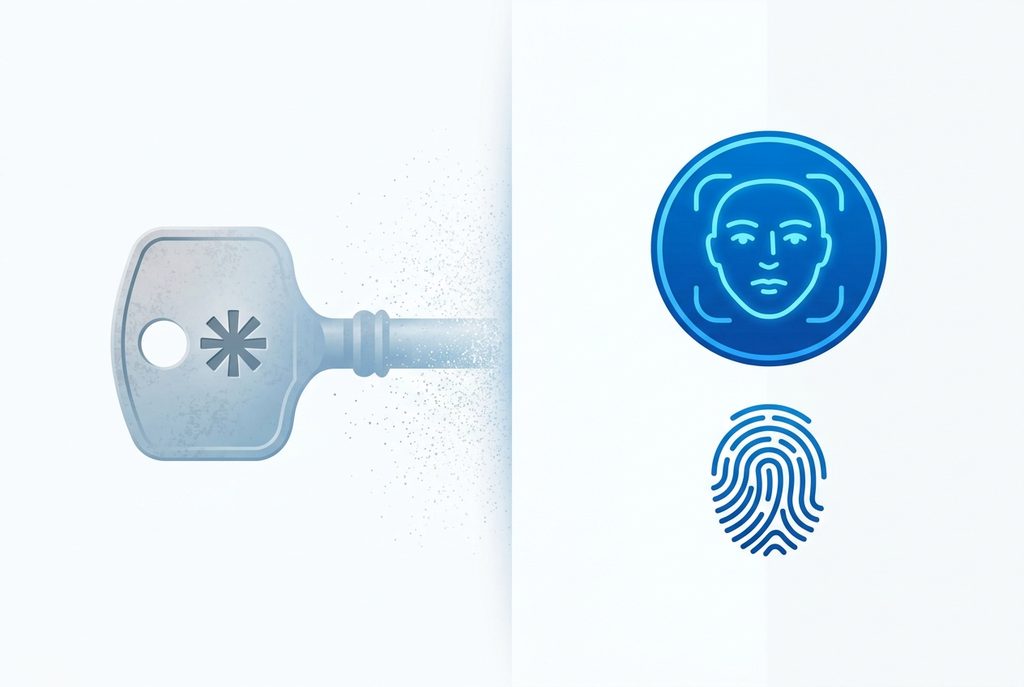
The FIDO Alliance, the standards body behind passkeys, defines a passkey as a cryptographic credential that is tied to your account. Instead of typing a secret word, you sign in by unlocking your device: a fingerprint, a face scan, your screen-lock pattern or PIN, or a hardware security key. The device proves it is you; the website lets you in. No password is typed, sent, or stored on the site’s side.
Two properties make that meaningfully different from a password:
- Nothing to guess or reuse. There is no string for an attacker to crack, buy from a breach dump, or type into a fake login page.
- Bound to the real site. A passkey is origin-bound: it works only on the genuine website it was created for. A lookalike phishing page cannot use it, because the credential simply will not match the fake domain.
Passkey vs password: what actually changes
The day-to-day difference is small — you tap or look at your phone instead of typing — but the security difference sits underneath:
- No shared secret. Your fingerprint or face never becomes part of the login. Google states explicitly that biometric data used for a passkey stays on your device.
- Not copyable. Google also states that passkeys cannot be shared or copied. You cannot lose a passkey by emailing it, reusing it, or having it harvested from a database, because it never exists as a reusable string.
- It plays nicely with 2FA. On a Google Account where two-factor authentication is already enrolled, Google notes that signing in with a passkey replaces the second step rather than adding a third — the device unlock does both jobs at once.
- It works where support exists. Passkeys are not universal yet. Plenty of banks, government portals and smaller services still ask for a password, and that is not going away overnight.
What stays on your device
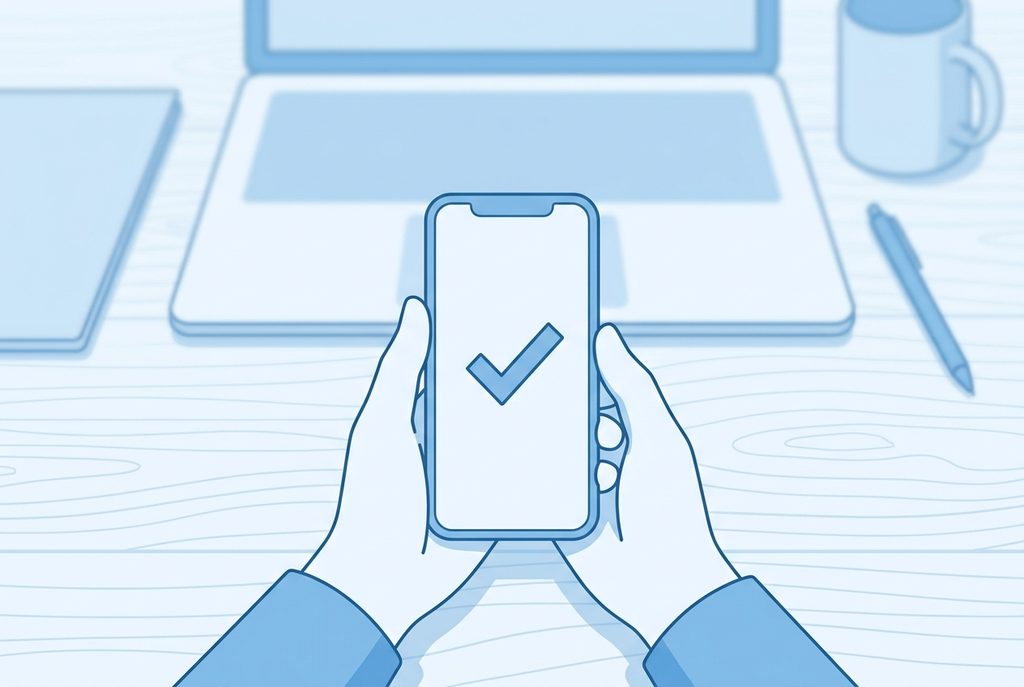
A common worry is biometrics: does my fingerprint get sent to some website? No. When you create a passkey, the biometric check happens locally on your phone or laptop. What leaves the device is a cryptographic yes/no — your face or fingerprint data stays put. Google states this directly for its own passkeys, and Apple’s passkey storage runs through iCloud Keychain, which syncs your passwords and passkeys across your devices using 256-bit AES encryption and asks for device approval before use.
How to set up a passkey: the general flow
Passkeys are created where you already sign in. On any account that supports them, the flow looks like this:
- Open the account’s security or sign-in settings — often under “Account”, “Security”, or “Sign-in options”.
- Look for Passkeys, Passwordless sign-in, or Sign in with a passkey and choose to create one.
- Confirm with your device unlock — fingerprint, face, pattern, PIN, or security key. This is the only “password” you will ever enter again for that account.
- Choose where it is saved: your platform’s built-in password manager (Google Password Manager, iCloud Keychain, or Windows Credential Manager), another device, or a hardware security key.
- Finish by verifying you can sign out and back in. If the passkey prompt appears, setup worked.
Google Account (Android, Chrome, any platform)
Google documents passkey creation for Google Accounts in its official help page, Create a passkey for your Google Account. The account’s passkey section lets you create a passkey and choose where it is stored — your Google Password Manager, another phone, or a security key. Because Google states that biometric data stays on the device and passkeys cannot be copied, this is the fastest place to get your first passkey working.
Microsoft account (Windows, iPhone, Android)
Microsoft’s documented path is the most explicit of the three, so use it as your concrete example:
- Go to account.live.com/proofs/manage in a browser.
- Choose Add a new way to sign in.
- Pick Face / Fingerprint / PIN / Security Key.
- Save the passkey to your choice of location: Microsoft’s Password Manager, an iPhone, an Android device, a security key, or Windows Hello on your PC.
(Source: Microsoft Support, Create and save a passkey, accessed 2026-10-15.)
Apple (iPhone, iPad, Mac)
On Apple devices, passkeys live in iCloud Keychain, which Apple documents as syncing your passwords and more across devices with 256-bit AES encryption and device approval (iCloud Keychain: passwords and more; Set up iCloud Keychain). Where a site offers passkeys on iPhone or iPad, you will be prompted to create one during sign-in and confirm it with Face ID, Touch ID, or your device passcode. Make sure iCloud Keychain is enabled first — without it, passkeys have nowhere to sync.
What passkeys do not fix
- Not every site supports them. Until a service offers passkeys, your password remains the only way in — which is why the password manager stays on your desk.
- Recovery still matters. If you lose every device that holds a passkey, you need the account’s recovery options to get back in. Keep recovery email and phone details current on the accounts you care about.
- Ecosystem lock-in is real. Passkeys sync within a platform’s keychain. Moving between ecosystems means moving your saved passkeys with you, and some sharing workflows do not exist at all — by design, a passkey cannot be sent to a family member like a shared password can.
- It does not fix every account-takeover path. If someone compromises your recovery email itself, or tricks you into approving a prompt, a passkey alone will not save you. It removes the weakest link (the password) — not every link.
Should you stop using passwords?
Not yet — but you should start adding passkeys wherever they are offered and treat passwords as the fallback they are becoming. A sensible order of attack:
- Create passkeys on your highest-value accounts first: email, phone platform account, and money-adjacent services.
- Keep everything else in a password manager so every remaining password is long and unique.
- Make sure no password you still use has already appeared in a breach — our guide on checking whether your password was leaked takes two minutes.
- Keep recognising the attack that passkeys beat: a login page reached from an email. Our walkthrough on spotting phishing emails covers the tells.
Frequently asked questions
Are passkeys safe?
Yes — that is their design purpose. A passkey is bound to the genuine site, cannot be typed into a fake one, and the biometric that unlocks it never leaves your device. Nothing is stored on the service’s side that resembles a password, so there is no credential in their database for an attacker to steal.
Can someone share or copy my passkey?
No. Google states passkeys cannot be shared or copied. That is deliberate: it prevents the credential from being forwarded in a message or reused elsewhere. The flip side is that shared-family workflows which worked with a shared password need a different arrangement today.
Does a passkey replace two-factor authentication?
On Google Accounts, Google notes that if two-factor authentication is already enrolled, signing in with a passkey replaces the second step — the device unlock serves as both factor. On other platforms, passkeys and 2FA coexist; check the account’s security settings to see how the provider has set it up.
What happens if I lose my phone?
Passkeys saved or synced through your platform account (iCloud Keychain, Google Password Manager) appear on your other signed-in devices, and every provider offers account recovery routes for total loss. This is exactly why you keep recovery options up to date and your passwords backed up — passkeys reduce how often you need those fallbacks, they do not delete the need for them.
New to the security basics? Start with our password manager comparison and work upward.
Passkeys are FIDO cryptographic credentials; sign-in via device unlock (biometric/PIN/pattern) instead of passwords | https://fidoalliance.org/passkeys/
Source –
Biometric data stays on the device (Google passkeys) | https://support.google.com/accounts/answer/13548313
Passkeys cannot be shared or copied (Google) | https://support.google.com/accounts/answer/13548313
On a Google Account with 2FA enrolled, passkey replaces the second step | https://support.google.com/accounts/answer/13548313