






Buffering, dropped calls, and pages that crawl — slow Wi-Fi usually has a fixable cause. This 2026 guide walks through 11 practical checks, from router placement to channel congestion, to get your home network fast again.
Your Wi-Fi worked fine yesterday. Today the video call stutters, the page hangs, and the streaming box spins. Before you blame your internet provider, know this: most slow Wi-Fi is a problem inside the home, not on the line coming in — and much of it is fixable in an afternoon.
This guide walks through what actually slows Wi-Fi down and eleven practical fixes, ordered from “check this first” to “worth doing if you are serious about speed”.
First, Separate the Two Problems
There are two different things people call “slow internet”:
- Slow speed from the provider — the connection entering your home is slower than your plan promises.
- Slow Wi-Fi inside the home — the connection is fine, but the wireless signal between your device and the router is weak or congested.
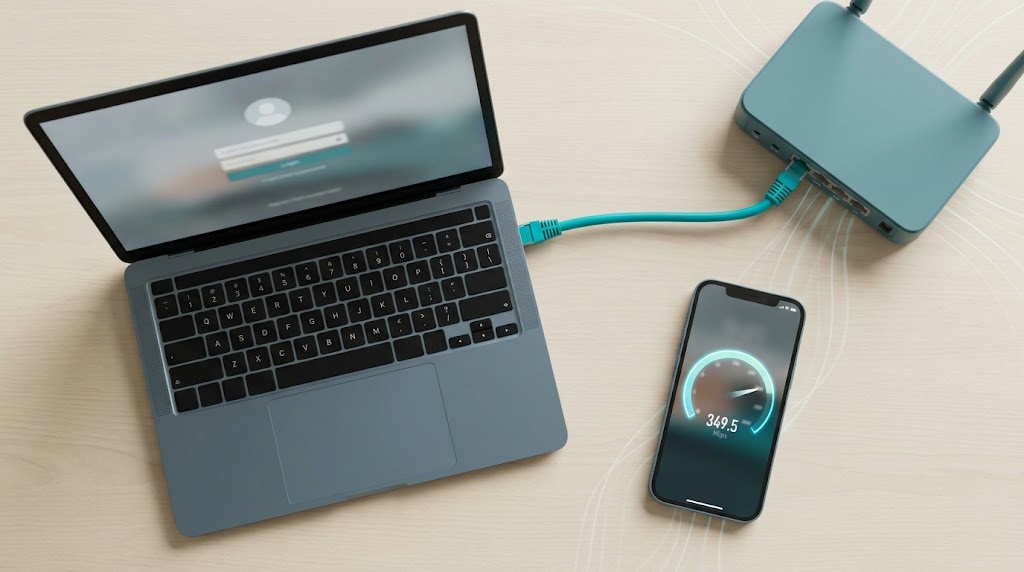
Test the difference with a wired connection: plug a laptop directly into the router with an Ethernet cable and run a speed test. If the wired speed is good but Wi-Fi is slow, the problem is your wireless setup, and the fixes below will help. If the wired speed is also poor, the issue is likely your provider or plan — call them.
What Actually Makes Wi-Fi Slow
The FCC’s Broadband Speed Guide is clear that its numbers are rough guidelines for what different activities need, not promises or measured averages. So treat “is my speed fast enough?” as “is it fast enough for what I am doing?” — an HD video call needs far less than simultaneous 4K streaming on three TVs.
The main culprits for home Wi-Fi slowdowns are distance, physical obstacles, interference, crowded channels, and outdated equipment. The Wi-Fi 6 Deployment Guidelines from the Wireless Broadband Alliance highlight that interference and poor access-point placement are central to real-world wireless performance — two factors you can usually control.
11 Fixes for Slow Wi-Fi
1. Move the router to a central, open spot
Wi-Fi weakens with distance and with walls, floors, and metal. Put the router in the middle of your living space, high up, in the open — not in a cupboard, behind a TV, or on the floor. The industry guidance on access-point placement points to line-of-sight as a key factor.
2. Get it off the floor and out of enclosures
Cupboards, metal cabinets, and closed media units block signal. Even a wooden cabinet adds a barrier; metal shelving can kill it.
3. Reduce interference from other devices
Microwaves, cordless phones, baby monitors, and some smart-home devices share or disturb the 2.4 GHz band. Keep the router away from them where possible. Interference is one of the most common real-world causes of unstable Wi-Fi.
4. Choose the right band
Most routers broadcast on 2.4 GHz and 5 GHz:
- 2.4 GHz — travels farther through walls but is slower and more crowded.
- 5 GHz — faster and less crowded but shorter range.
If your device is close to the router, prefer 5 GHz. If it is far away and 5 GHz keeps dropping, 2.4 GHz may be more stable, even if slower.

5. Change the Wi-Fi channel
On 2.4 GHz especially, neighbouring networks can pile onto the same channel. In your router settings, switch to a less crowded channel — on 2.4 GHz, channels 1, 6, and 11 are generally treated as the non-overlapping options (UNVERIFIED: widely accepted practice; confirm against your router’s documentation). Many routers have an “auto” setting that can help.
6. Reboot the router
It sounds basic because it often works. A monthly power-cycle clears memory and re-establishes the connection. Unplug for 30 seconds, then plug back in and wait for the lights to settle.
7. Update the router’s firmware
Manufacturers release firmware that fixes bugs and improves performance. Check the router’s admin page or the manufacturer’s app for updates.
8. Check how many devices are connected
Every phone, TV, tablet, console, and smart plug competes for bandwidth. Streams you forgot about — a paused 4K stream, a cloud backup running in the background — can eat the whole connection. Pause large downloads and backups when you need speed.
9. Disconnect and reconnect the device
A device can cling to a weak connection. Forgetting the network and rejoining, or toggling Wi-Fi off and on, often forces it onto a better band or access point.
10. Upgrade ageing hardware
An old router, or a modem/router from years ago, may simply not support modern speeds or modern Wi-Fi standards. If your plan is fast but your equipment is old, the equipment is the bottleneck. Upgrading to a current-generation router is often the single biggest win.
11. Extend coverage with a mesh system or extender
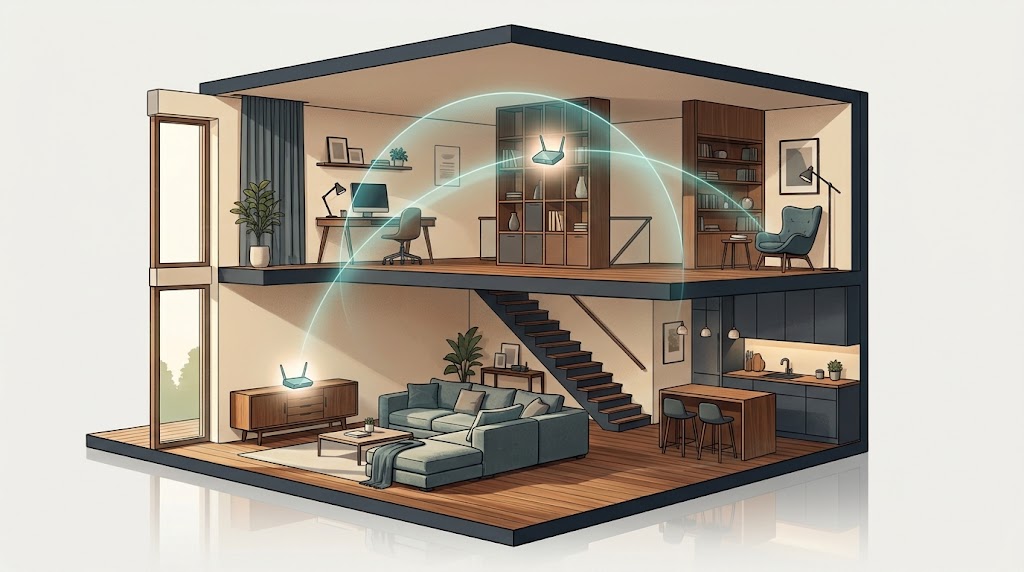
If the far end of your home never gets good signal, a mesh Wi-Fi system places several access points that hand devices off smoothly as you move. A single extender can help, though devices connected through it may see reduced speed (UNVERIFIED: no source fetched for a specific figure); mesh is usually the better long-term fix for large or multi-floor homes.
Quick Troubleshooting Table
| Symptom | Most likely cause | First fix |
|---|---|---|
| Slow everywhere, even wired | Provider or plan | Call your ISP; test on Ethernet |
| Fast near router, slow far away | Distance / walls | Move router centrally or add mesh |
| Slow only at certain times | Channel congestion / interference | Change channel; reduce interference |
| One device is slow, others fine | That device’s Wi-Fi or band | Reconnect; prefer 5 GHz |
| Drops during video calls | Congestion / weak signal | Pause background downloads; move closer |
Don’t Forget Security
While you are in the router settings, it is worth locking the network down properly — a secure router is also a router that is not sharing bandwidth with strangers. Our step-by-step guide on how to secure your home Wi-Fi network and router covers passwords, encryption, and guest networks.
And if you have ever lost files to a dead drive or a bad update, slow networking is a good reminder to get your backups in order: see our explanation of the 3-2-1 backup rule.
Frequently Asked Questions
Why is my Wi-Fi fast in one room and slow in another?
Signal strength falls with distance and is blocked by walls, floors, and metal. Moving the router central and high, or adding a mesh node, usually fixes room-to-room differences.
Does restarting my router really help?
Often, yes. A reboot clears temporary problems and reconnects to your provider. It is the fastest thing to try first.
Should I use 2.4 GHz or 5 GHz?
5 GHz is faster and less crowded but has shorter range; 2.4 GHz travels farther but is slower. Use 5 GHz near the router and 2.4 GHz far away.
Will a Wi-Fi extender fix slow Wi-Fi?
It can extend coverage, though devices connected through an extender may see reduced speed (UNVERIFIED: no source fetched for a specific figure). For large homes, a mesh system generally performs better.
How do I know if the problem is my provider?
Test with an Ethernet cable directly to the router. If the wired speed is also slow, the issue is likely the provider or plan.
The Bottom Line
Slow Wi-Fi is usually a placement, interference, or hardware problem — not a mystery. Test wired versus wireless, move the router, pick the right band and channel, and upgrade only when the hardware is genuinely the bottleneck. Do one fix at a time and re-test; you will find the culprit faster than you think.