




A no-hype 2026 comparison of the best password managers — free and paid — with prices, features and the safest pick for your use case.
The best password manager for most people in 2026 is Bitwarden: its free plan covers unlimited passwords and unlimited devices, and its paid tiers cost less than most rivals. If you want the most polished apps and are happy to pay, 1Password is the best upgrade. Everything else is about fit — family seats, sharing, offline use, or simply using what is already built into your phone.
Below is a pick for each use case, then a plain-English guide to how password managers work, whether they are safe, and how to choose between free and paid.
| Use case | Our pick | Why in one line |
|---|---|---|
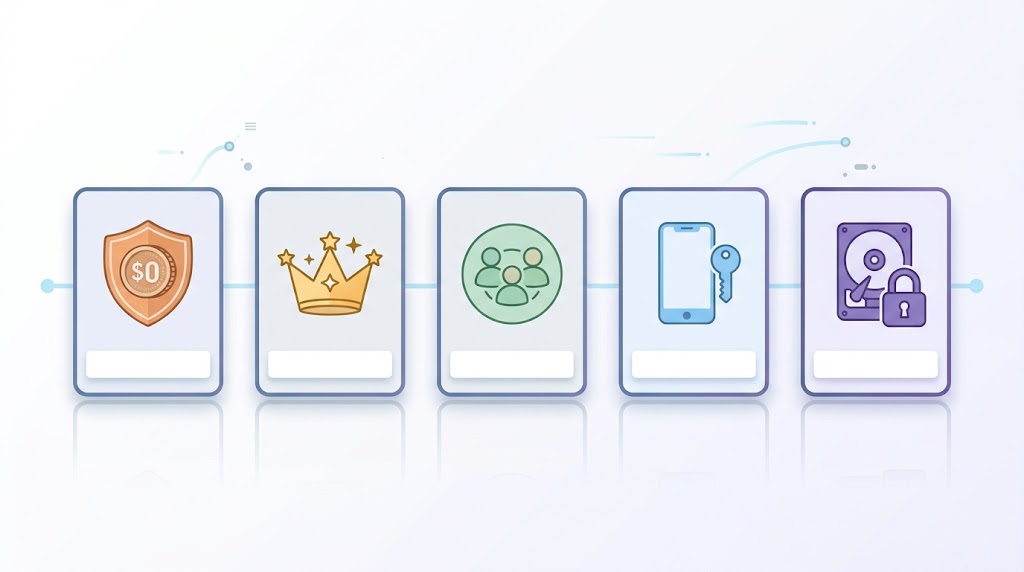
| Best free | Bitwarden | Unlimited passwords and devices at no cost; open source |
| Best overall (paid) | 1Password | Secret Key, Watchtower and Travel Mode, with the best-designed apps |
| Best for families | 1Password Families or Bitwarden Families | Shared vaults across 5 seats (1Password) or up to 6 (Bitwarden) |
| Best built-in (zero setup) | Apple Passwords or Google Password Manager | Already on your device and free — good enough for many people |
| Best open-source / offline | KeePassXC | Local encrypted vault, no cloud account required |
How this guide was built: we read the vendors’ own pricing and feature pages live on 2026-10-13 and cross-checked every pick against named independent reviews (WIRED, CNET, TechRadar, Wirecutter, Tom’s Guide, passwordmanager.com, Security.org). We did not run our own lab tests, so we make no “we tested” claims. Prices change often — treat them as “as of 2026-10-13” and confirm on the vendor page. Where a vendor renders prices dynamically we say “check the vendor page” instead of guessing. This roundup follows Google’s standing advice for content quality — its core-update guidance and its helpful, reliable, people-first content guidance; the May 2026 core update (rolled out 21 May–2 June 2026) came with no update-specific instruction beyond that.
The short answer
- Want free and genuinely good? Bitwarden (or Proton Pass as a close second).
- Want the best overall experience? Pay for 1Password.
- Have a family? Choose by seat count — 1Password Families (5 users) or Bitwarden Families (up to 6).
- Want zero setup? Use the built-in manager on your phone: Apple Passwords on iPhone/Mac, or Google Password Manager in Chrome.
- Want no cloud at all? KeePassXC keeps an encrypted local vault.
One honesty note before the detail: the real risk in 2026 is not the choice of manager — it is reusing the same password across sites. Every reputable manager here is safe; the differences are price, convenience and sharing. CISA’s public guidance recommends a password manager as part of strong password practice, and the UK NCSC recommends a “three random words” password for the few you must memorise and letting a manager handle the rest (the passwords themselves should be long and unique).
What a password manager actually does
A password manager stores your logins (and usually passkeys, cards and secure notes) in an encrypted vault, then fills them in on websites and apps so you can use a long, unique password everywhere without memorising any of them.
Generates and stores strong, unique passwords
It creates long random strings that are impractical to guess, and remembers them for you. That directly addresses the failure mode attacks rely on: the same password reused across many accounts.
Autofills across browsers, phones and apps
Good managers fill credentials into desktop browsers, mobile apps and phones, and keep the vault in sync so a login saved on your laptop is available on your phone.
Warns you about weak, reused or breached logins
Most paid tiers include a password-health or breach-monitoring feature that flags weak, reused or leaked credentials so you can change them. On several vendors this is paid-only (see the free vs paid section below).
Cloud sync vs local-only vaults (the one design choice that matters most)
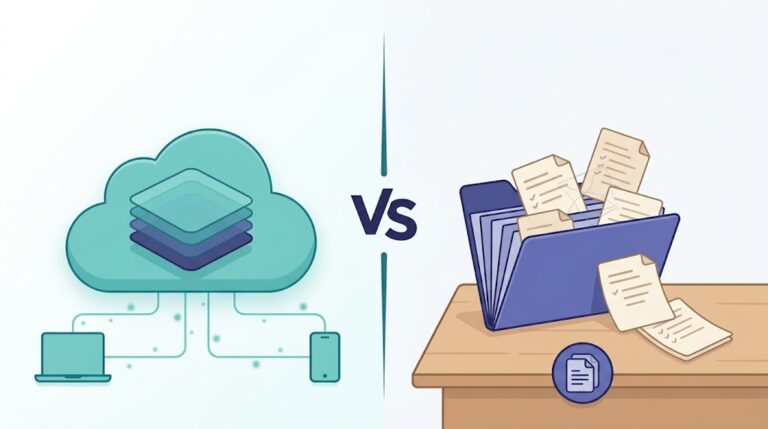
This is the decision that shapes everything else. A cloud vault syncs across your devices through the vendor’s servers (encrypted), which is why it feels effortless. A local-only vault such as KeePassXC keeps the encrypted file on your own device with no cloud account — more control, but you handle the syncing yourself. Neither is “more secure” in the abstract; they trade convenience against control.
Are password managers safe? (the #1 objection)
This is the question that stops people buying. In short: a reputable manager is safer than the alternative. CISA recommends using one, and neither CISA nor NCSC treats storing passwords in a manager as a risk to avoid.
Zero-knowledge / end-to-end encryption in plain words
The defining property of a good manager is zero-knowledge encryption: your vault is encrypted and decrypted on your own device, so the vendor cannot read what is inside. Bitwarden publishes a security whitepaper documenting its AES-256 encryption and PBKDF2/Argon2 key-derivation options; NordPass is described in independent coverage as using a zero-knowledge architecture with XChaCha20 encryption. State the cipher only where a vendor whitepaper or a named independent review confirms it — not every manager uses the same scheme, so avoid the blanket claim that “all managers use AES-256.”
What NIST SP 800-63-4 says about syncable authenticators
The US standards body NIST published the final version of SP 800-63-4 in July 2025. It superseded the earlier SP 800-63-3, effective 1 August 2025, and it explicitly recognises the modern practice of syncable authenticators — the stored, synced credentials that password managers rely on. In plain terms, the current US guidance is written for a world in which people use password managers, not against it. Treat SP 800-63-3 only as superseded history; SP 800-63-4 is the current reference.
Master password + two-factor; why built-in browser managers differ
You protect the vault with one master password you memorise — so make it long and unique, not reused anywhere else — and ideally turn on two-factor authentication (2FA) for the vault’s account. Built-in managers (Apple, Google, Microsoft) work differently: they are tied to your platform account and are convenient precisely because there is no separate vault to set up, but they typically give you fewer controls and are more limited outside their own ecosystem. That trade-off is the subject of a later section.
Free vs paid — what you actually get
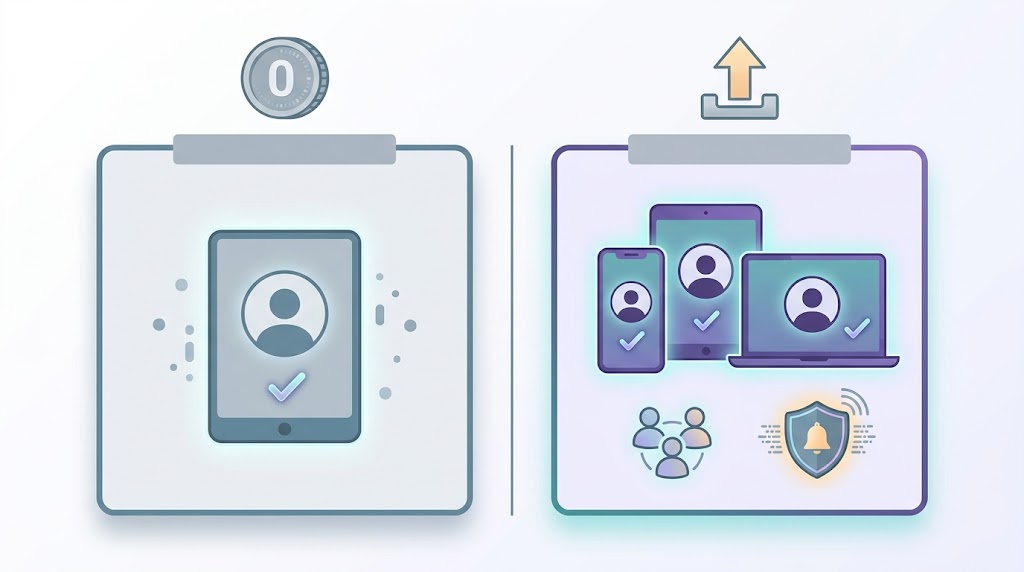
Across the products reviewed, paid tiers tend to unlock a recurring set of things that free plans either limit or omit. Free tiers are usually fine if you are one person on a couple of devices; you tend to start paying when you need to share or to add security extras.
- Multi-device sync and concurrent sessions. Free plans often restrict this. NordPass Free, for example, allows only one active session, and Keeper Free is limited to one mobile device with no desktop app, browser extension or web vault. Bitwarden and Proton Pass are the common exceptions cited as having the most generous free tiers.
- Record or storage caps. Keeper Free is capped at 10 records (a login, passkey or note).
- Security extras. Breach/dark-web monitoring, password-health checks, email masking, file attachments and hardware-key support are usually paid-only. On Keeper, BreachWatch and Secure File Storage are paid add-ons.
- Sharing. Secure sharing with family or a partner is usually paid (Keeper Free excludes sharing entirely).
- Support. Priority/live support is typically paid; Keeper Free offers self-service docs only.
| Question | Typical free tier | Typical paid tier |
|---|---|---|
| Unlimited passwords? | Often yes (varies) | Yes |
| Unlimited devices / sync? | Often limited to one active session or one device | Yes, across devices |
| Secure sharing & family seats | Rarely | Yes |
| Breach monitoring / password health | Rarely | Yes |
| Extra storage (attachments) | Rarely | Usually |
| Priority support | No | Usually |
When free is genuinely enough: one person, a handful of devices, no sharing need — Bitwarden or Proton Pass free will do the job for years. When paying is worth it: you share logins with a partner or family, you want breach alerts and password-health checks, or you simply want the most polished app.
The best password managers in 2026
Each pick below lists what it is, who it is for, standout features, pricing (as of 2026-10-13) and one honest caveat. Re-verify every price on the vendor page before you buy.
Best free — Bitwarden
What it is: an open-source manager whose free plan is widely rated the most generous. Who it’s for: anyone who wants strong security without paying. Standout features: unlimited passwords and devices on the free plan, self-hosting options, and a published security whitepaper. Pricing (as of 2026-10-13): Free $0; Premium $1.65/month billed annually ($19.80/yr); Families $3.99/month ($47.88/yr) for up to 6 users; Teams from $4/user/month; Enterprise $6/user/month. Third-party view: WIRED names Bitwarden the best overall manager for most people, and CNET scores it 9.2 as the best free manager. Caveat: the interface is plainer than 1Password’s, and the most polished extras — encrypted file storage, premium two-step login options and emergency access — sit in paid tiers. Close second: Proton Pass Free also covers unlimited logins and devices — see below.
Best overall paid — 1Password
What it is: the most polished paid manager, aimed at people who want the best experience and will pay for it. Who it’s for: individuals and families who value design, sharing and travel features. Standout features: the Secret Key (an extra device-bound secret added to your master password), Watchtower breach/weak-password monitoring, and Travel Mode for crossing borders. Pricing (as of 2026-10-13): no free tier — a 14-day trial instead. Individual: $3.99/month (promotional $2.99/month billed yearly), 1 user, 1 GB storage. Families: $5.99/month (promotional $4.49/month billed yearly), 5 users, 1 GB per user. Third-party view: WIRED calls it the best upgrade (8/10) and CNET calls it the best for families (8.8). Caveat: no free plan, so it is a paid commitment from day one.
Best value paid — Bitwarden Premium and Proton Pass Plus
If you want paid features without the top-tier price, these two are the value picks. Bitwarden Premium is $1.65/month billed annually ($19.80/yr) and adds advanced 2FA, encrypted file storage and emergency access on top of the free core. Proton Pass Plus is $2.99/month ($35.88/yr) and adds more email aliases and breach monitoring on top of the free core; Proton Pass Family is $4.99/month ($59.88/yr) and Proton Unlimited bundles it with the wider Proton suite at $9.99/month ($119.88/yr). Proton Pass’s free plan is also one of the most generous, covering unlimited logins and devices with 10 aliases and 1 GB of storage. Caveat: both are leaner than 1Password on design and support polish — you are trading a little finish for a much lower price.
Best for families — 1Password Families, Bitwarden Families, RoboForm Family
Choose by seat count and how much you value sharing. 1Password Families (5 users, $5.99/month, promo $4.49/month billed yearly) has the nicest shared-vault experience and per-person private vaults. Bitwarden Families ($3.99/month, $47.88/yr) covers up to 6 users for less. RoboForm Family is the budget option: $3.98/month billed annually ($47.75/yr) for up to 5 users, with AES-256 encryption, 2FA and passkey support. Caveat: seat limits are hard stops — count your users before you buy, and check whether each plan gives every member a private vault as well as shared ones.
Best free and open source, offline-first — KeePassXC
What it is: a free, open-source (GPLv3) manager that keeps an encrypted vault file locally, with no cloud account, ads, trackers or subscription. Who it’s for: technical users who want full control and are happy to manage their own sync (for example via a cloud drive or a USB key). Standout feature: it has earned an ANSSI Security Visa (a French government security certification). Pricing: free. Caveat: there is no vendor-run sync or support, so losing the vault file (or the master password) means losing the data — back it up.
Best built-in with zero setup — Apple Passwords and Google Password Manager
If you mainly live in one ecosystem, the built-in option may be all you need, and it costs nothing. Apple Passwords ships with iOS 18, iPadOS 18, macOS Sequoia and visionOS 2 (and later); it handles passwords, passkeys, verification codes and Wi-Fi passwords, includes breach monitoring, supports browser extensions, and uses 256-bit AES encryption. Tom’s Guide’s review rates it free and tightly integrated but notes it cannot match premium third-party managers. Google Password Manager is free with Chrome and your Google Account, autofills across signed-in devices, and can save passwords to your account or locally; passwordmanager.com scores it 3.8/5 and notes it is Chrome-centric. Microsoft Password Manager is also free with a Microsoft account and Edge, but we found no dedicated independent review of it — treat claims about it as vendor-sourced. Caveat: built-ins are strongest inside their own ecosystem and weaker across Windows/Android vs Apple, or Chrome vs everything else; if you mix platforms, a dedicated manager is usually the better fit.
A note on passkeys: they are the emerging phishing-resistant replacement for passwords, with standards maintained by the FIDO Alliance. They reduce the risk of a stolen password because there is no shared secret to phish — but describe them as phishing-resistant, not as eliminating account takeover entirely.
Also worth a look — Dashlane, NordPass and Keeper
Dashlane is a long-standing full-featured manager that WIRED rates highly. Important: Dashlane ended its free plan on 16 September 2025 and now offers only paid plans, with no monthly subscriptions — do not expect a free tier. Its personal plans are simply “Premium” and “Friends & Family” (for up to 10 accounts); because its pricing page renders amounts dynamically, check the vendor page for current prices.
NordPass has a genuinely free plan (unlimited passwords and passkeys, autosave/autofill, MFA, but only one active session), with Personal Premium and Family tiers adding a breach scanner, password health, email masking and multi-device sessions; it uses XChaCha20 encryption per Security.org. CNET scores it 9.7 as “best overall,” PCMag lists it as an Editors’ Choice pick (we could only read that page via search snippet — verify before quoting), and TechRadar includes it. Caveat: CNET notes the price rises after the first year/renewal, so check the renewal rate. NordPass’s prices also render dynamically — check the vendor page.
Keeper is strong on business sharing (WIRED calls it “best for sharing,” 7/10; CNET “best for small business,” 7.9), but its free plan is one of the most restrictive: one mobile device, up to 10 records, 2FA included, with no cross-device sync, no browser extension, no web vault, no sharing and no password generator. Its Unlimited personal price was not cleanly readable — check the vendor page. Treat Keeper as a paid or business pick, not a free one.
Password managers compared at a glance
Every cell below is drawn from the vendor pages read on 2026-10-13 and the named reviews cited above. Where a value was not cleanly readable, it is marked.
| Manager | Free tier? | Paid price (as of 2026-10-13) | Family / sharing | Encryption | Standout | Best for |
|---|---|---|---|---|---|---|
| Bitwarden | Yes — unlimited passwords/devices | Premium $1.65/mo annual; Families $3.99/mo | Families up to 6 users | AES-256 (PBKDF2/Argon2) | Most generous free plan; open source | Best free / best value |
| 1Password | No — 14-day trial | Individual $3.99/mo; Families $5.99/mo (promos billed yearly) | Families 5 users | Vendor-managed, Secret Key | Best-designed apps; Travel Mode | Best overall / families |
| Proton Pass | Yes — unlimited logins/devices | Plus $2.99/mo; Family $4.99/mo | Family plan available | Zero-knowledge (Proton) | Email aliases built in | Best free runner-up / value |
| RoboForm | Yes — single device | Premium $2.49/mo annual; Family $3.98/mo annual | Family up to 5 users | AES-256 | Cheap family plan | Budget family |
| Dashlane | No — ended 2025-09-16 | Check vendor page (dynamic) | Friends & Family (10 accounts) | Zero-knowledge | Full-featured, polished | Paid power users |
| NordPass | Yes — one active session | Check vendor page (dynamic) | Family plan available | XChaCha20 (per Security.org) | CNET 9.7 “best overall” | Free starters; watch renewal price |
| Keeper | Yes — 1 device, 10 records | Check vendor page (dynamic) | Family 5 vaults, 10 GB | AES-256 | Strong business sharing | Business / paid users |
| KeePassXC | Yes — entirely free | Free (open source, GPLv3) | Manual (share the vault file) | Local encrypted vault | No cloud, ANSSI Security Visa | Offline / full control |
| Apple Passwords | Yes — free | Free with Apple devices | Family Sharing | 256-bit AES | Zero setup on iPhone/Mac | Apple-only households |
| Google Password Manager | Yes — free | Free with Google Account | Limited | Google Account security | Zero setup in Chrome | Chrome/Google users |
Prices are date-sensitive and several vendors render them dynamically; always confirm on the vendor page before buying.
Where your passwords are stored (and why it matters)
Two designs dominate. In a cloud vault, your encrypted vault syncs across devices through the vendor’s servers — convenient, and safe when the encryption is zero-knowledge (the vendor cannot read it). In a local vault like KeePassXC, the encrypted file lives on your device and never touches a vendor’s cloud; you control the sync, and you carry the backup responsibility.
Two practical questions follow. Can you get your data out? Every reputable manager lets you export your vault (usually as a CSV) and import it elsewhere, so you are not locked in — the export/import docs for the major products are linked in the switching section below. What if the vendor shuts down, or you lose the master password? With a zero-knowledge design, a vanished vendor cannot hand over a readable copy of your vault — which is exactly why you should keep an independent backup, and why losing the master password can mean losing the vault. Choose a long, memorable master password and store a recovery copy somewhere safe and offline.
How to switch to a password manager (step by step)
Moving from a browser list or another manager is an export-then-import job. These are the safe steps.
- Export from your current setup. From your browser or old manager, export your logins — usually a CSV. Official import/export guides exist for each product (for example Bitwarden’s import and export help pages and 1Password’s import guide).
- Import into the new manager. Use its importer and check that the entry count matches what you exported.
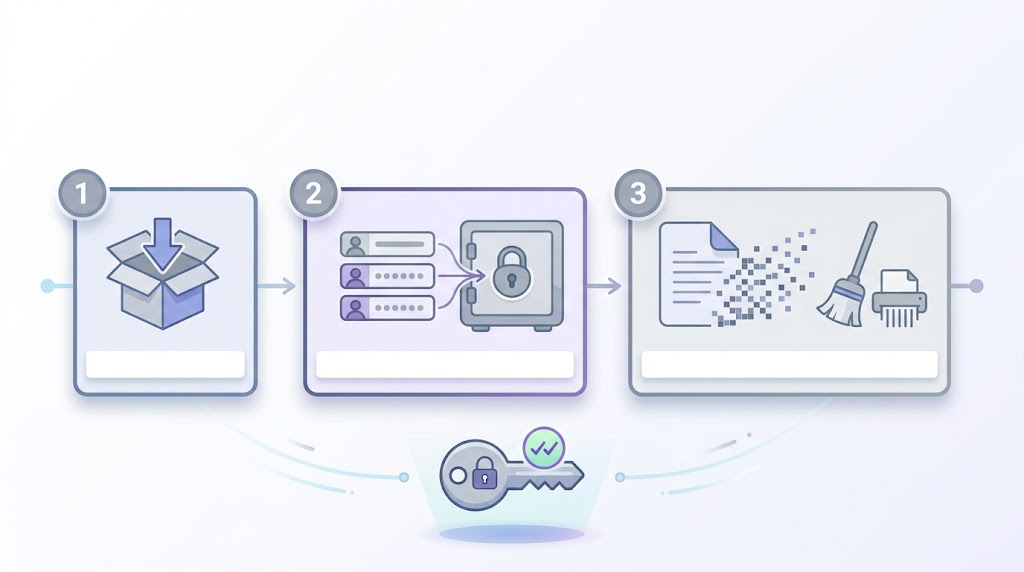
- Delete the export file securely. An exported CSV is unencrypted plaintext — delete it securely once the import is verified, and never email it or leave it in a downloads folder.
- Set a strong master password. Long and unique, not reused anywhere. A passphrase of several random words is a good pattern, per NCSC guidance.
- Turn on two-factor authentication for the manager’s account.
- Start with the accounts that matter: email, banking and shopping first, then work through the rest.
Once you have moved, use the manager’s password-health or breach-monitoring feature to find and fix anything weak or reused — and see our guide on check whether your password was leaked if you suspect an old login is already exposed.
FAQ
Is a free password manager safe?
Yes. A reputable free manager such as Bitwarden or Proton Pass uses the same encrypted-vault design as paid ones. Free tends to limit devices or sharing, not security itself.
Is Bitwarden safe?
Bitwarden publishes a security whitepaper documenting AES-256 encryption and PBKDF2/Argon2 key derivation, and it is consistently rated the best free manager by WIRED and CNET. Its core is open source, so its code can be inspected.
Is 1Password worth paying for?
If you want the most polished apps, family sharing and features like Travel Mode, yes — WIRED calls it the best upgrade and CNET the best for families. If you only need the basics, Bitwarden’s free plan covers them.
Are browser password managers enough?
For many people, yes — Apple Passwords and Google Password Manager are free, integrated and fine for a single ecosystem. They are weaker across mixed platforms and give you fewer controls, so a dedicated manager is the better fit if you use Windows and Apple devices, or Chrome and everything else.
What’s the safest password manager?
There is no single “safest.” The bigger factor is using any reputable manager instead of reusing passwords — CISA recommends a manager outright. Among dedicated apps, all the major names here use zero-knowledge encryption; pick by fit, not by a safety ranking.
Do I need a password manager if I use passkeys?
Often, yes — most people will have both for years. Passkeys are phishing-resistant and growing fast (standards via the FIDO Alliance), but plenty of sites still use passwords, and a manager stores both your passwords and your passkeys in one place.
1Password or Bitwarden — which should I choose?
Choose Bitwarden if you want the best free plan or value; choose 1Password if you want the most polished experience and are happy to pay. Both are safe; the decision is price and finish.
Recap / Verdict
The decision rule is simple. Free: Bitwarden, with Proton Pass a close second. Paid: 1Password for the best all-round experience. Family: pick by seat count — 1Password Families (5) or Bitwarden Families (up to 6), or RoboForm Family on a tight budget. Offline / full control: KeePassXC. Zero setup: the built-in manager on your phone. Whichever you pick, the win comes from using unique passwords everywhere and protecting the vault with a strong master password and 2FA.
Your next action: open one of these managers, import your logins, and fix the accounts that matter most — email, banking and shopping — first.
Sources
- CISA — Use Strong Passwords: https://www.cisa.gov/secure-our-world/use-strong-passwords
- NCSC (UK) — Password guidance: https://www.ncsc.gov.uk/collection/passwords
- FIDO Alliance — Passkeys: https://fidoalliance.org/passkeys/
- NIST — SP 800-63-4 (current): https://pages.nist.gov/800-63-4/ ; SP 800-63-3 (superseded 2025-08-01): https://pages.nist.gov/800-63-3/sp800-63b.html
- FTC — Creating Strong Passwords (2023-09-08): https://consumer.ftc.gov/creating-strong-passwords-other-ways-protect-your-accounts
- Bitwarden — Pricing: https://bitwarden.com/pricing/ ; Security Whitepaper: https://bitwarden.com/help/bitwarden-security-white-paper/ ; Import: https://bitwarden.com/help/import-data/ ; Export: https://bitwarden.com/help/export-your-data/
- 1Password — Pricing: https://1password.com/pricing/personal ; Import: https://support.1password.com/import/
- Proton Pass — Pricing: https://proton.me/pass/pricing
- RoboForm — Personal pricing: https://www.roboform.com/pricing-personal
- Dashlane — Personal pricing: https://www.dashlane.com/pricing-personal ; Free plan ending: https://www.dashlane.com/blog/dashlane-free-ending
- NordPass — Plans: https://nordpass.com/plans/ ; Premium vs Free: https://support.nordpass.com/hc/en-us/articles/360006700458-Premium-vs-Free-version-of-NordPass
- Keeper — Free plan contents: https://help.keeper.io/article/255-whats-included-in-the-free-plan ; Personal & family pricing: https://www.keepersecurity.com/pricing/personal-and-family.html
- KeePassXC: https://keepassxc.org/
- Apple — Use Passwords on iPhone: https://support.apple.com/guide/iphone/use-passwords-on-iphone-iphd18e98624/ios/
- Google — Manage passwords in Chrome: https://support.google.com/chrome/answer/95606
- Microsoft — Microsoft Password Manager: https://support.microsoft.com/en-us/accounts-billing/manage/view-or-edit-your-passwords-in-microsoft-password-manager
- WIRED — Best Password Managers (Scott Gilbertson, upd. 2026-08-02): https://www.wired.com/story/best-password-managers/
- CNET — Best Password Manager (Joe Supan, upd. 2026-08-10): https://www.cnet.com/tech/services-and-software/best-password-manager/ ; NordPass review: https://www.cnet.com/tech/services-and-software/nordpass-review/
- TechRadar — Best password manager (upd. 2026-08-27): https://www.techradar.com/best/password-manager
- Wirecutter (NYT) — Best Password Managers: https://www.nytimes.com/wirecutter/reviews/best-password-managers/
- Tom’s Guide — Apple Passwords review (Emily Long, 2025-01-16): https://www.tomsguide.com/computing/password-managers/apple-passwords-review
- passwordmanager.com — Google Password Manager review: https://www.passwordmanager.com/google-password-manager-review/
- Security.org — NordPass price/plans: https://www.security.org/password-manager/nordpass/
- PCMag — Best Password Managers (page returned 403; snippet-only): https://www.pcmag.com/picks/the-best-password-managers
- Google Search Central — Core updates: https://developers.google.com/search/docs/appearance/core-updates ; Creating helpful, reliable, people-first content: https://developers.google.com/search/docs/fundamentals/creating-helpful-content
- Google Search Status Dashboard — May 2026 core update (began 2026-05-21 08:40, complete 2026-06-02 05:40, US/Pacific): https://status.search.google.com/incidents/wdAXJk6LRRihEjpzEeWE
- Search Engine Land — Google May 2026 core update rollout is now complete (Barry Schwartz, 2026-06-02): https://searchengineland.com/google-may-2026-core-update-rollout-is-now-complete-479119
Related Guides