


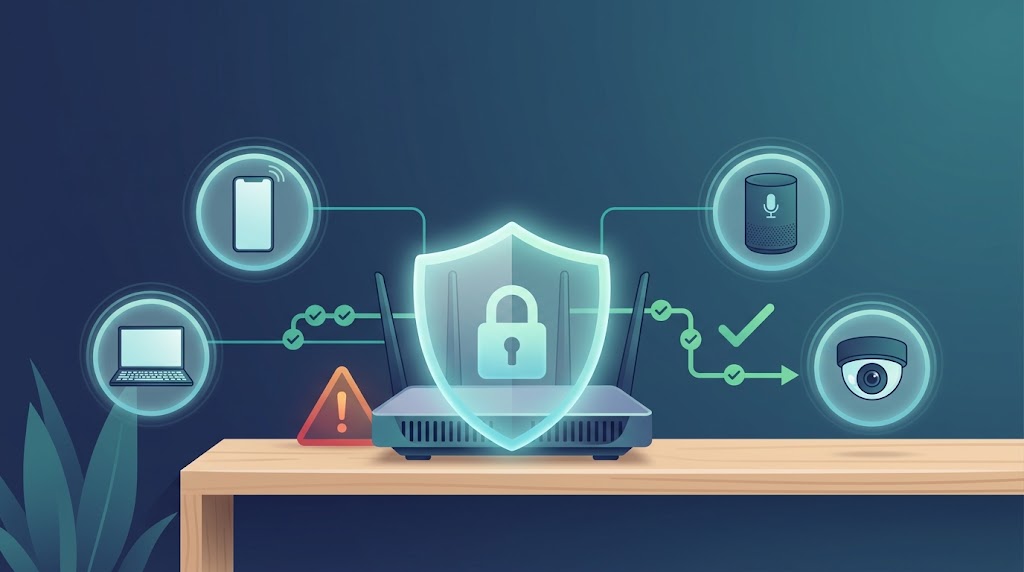
Your router's factory settings were designed for easy setup, not for safety — and the defaults are the same on every unit of your model. Here is a plain-English, ordered checklist to lock down your home Wi-Fi: change the admin password, turn on WPA3, update the firmware, and shut the doors an attacker actually uses.
Your router is the front door to every device in your home. Phones, laptops, smart speakers, cameras and TV boxes all sit behind it, and everything they send and receive passes through it. The trouble is that routers ship configured for easy setup, not for safety — and the defaults are identical on every unit of the same model. This guide is a plain-English checklist that explains what to change and why, in the order you should actually do it. No technical background is needed. The advice below follows official guidance from the Federal Trade Commission (FTC), the Cybersecurity and Infrastructure Security Agency (CISA), and the National Security Agency (NSA).
Why securing your router matters
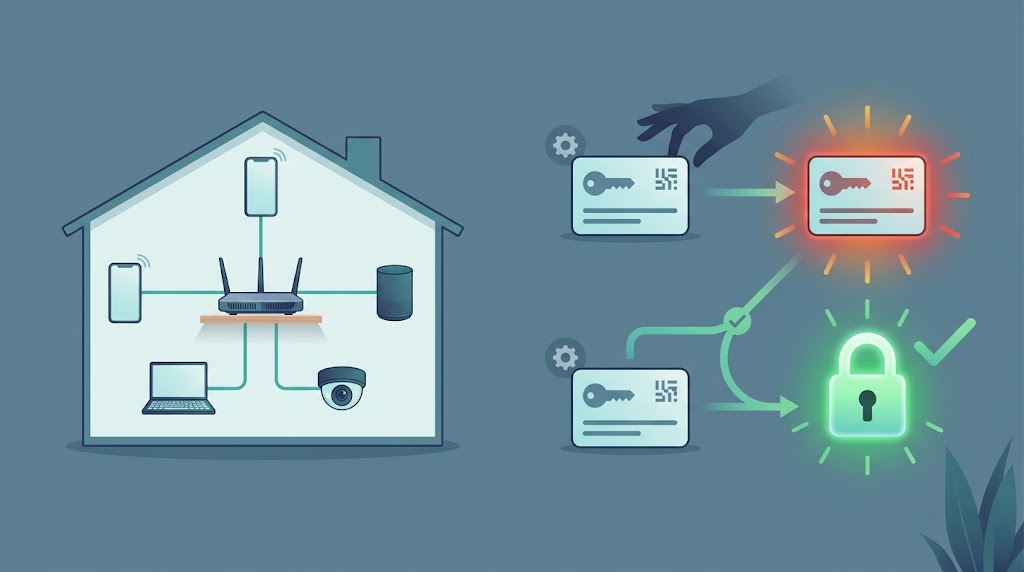
Your router is the gateway to every device
A router is the device that connects your home network to the internet and directs traffic between them. As CISA puts it, your home network is only as secure as its weakest point — and the router is the point every other device depends on (CISA — Home Network Security). If the router is wide open, everything behind it is exposed, however careful you are on each individual phone or laptop.
Default passwords and settings are the biggest risk
Most routers come from the factory with a default administrator username and password, chosen to make setup simple. Those defaults are published in the manual and are easy to find online, so they offer no real protection (CISA — Securing Wireless Networks). An attacker does not need to guess: they only need to know which model you have. The same is true of the default network name. This is why the FTC’s first instruction is to change the default administrative username, password, and network name to something unique (FTC — How To Secure Your Home Wi-Fi Network).
What can happen if you don’t
An unsecured network is not just your problem. The FTC warns that if someone uses your network to commit a crime, such as sending illegal spam, the activity can be traced back to you. The NSA adds that without proper protection, malicious actors can compromise your connected devices. In practice, an intruder can snoop on unencrypted traffic, use your devices in attacks on others, or simply consume your bandwidth. Every step below closes a different door.
How to secure your home Wi-Fi: the checklist (in order)
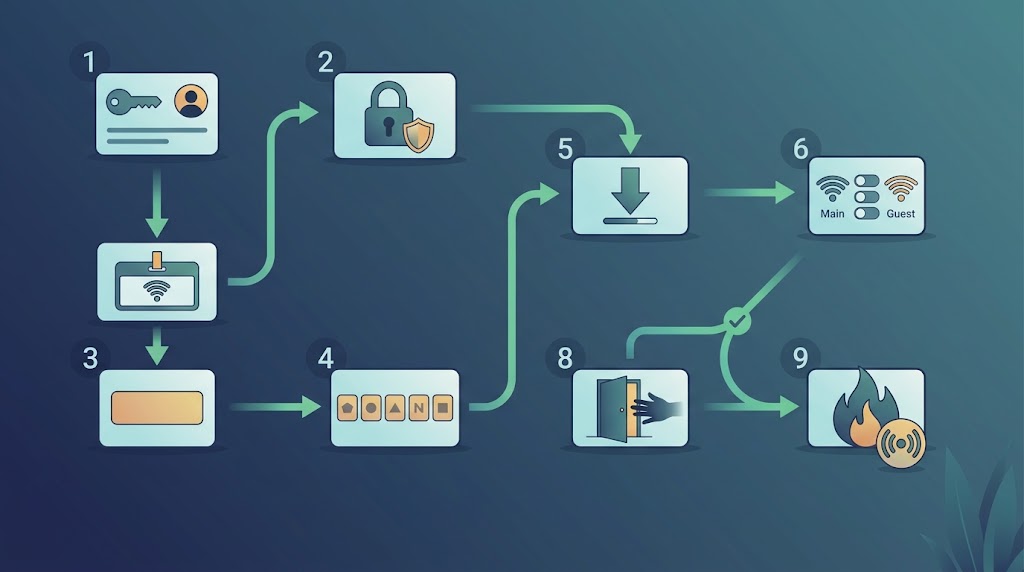
You make all of these changes in the same place: your router’s admin settings. You usually reach them by typing the router’s local address into a browser, or through the manufacturer’s app. If you are unsure how to get in, your internet service provider (ISP) or the router’s manual can tell you. Work through the steps in order — the first one protects all the others.
1. Change the router’s admin username and password
This is the single most important step. The admin login controls your router’s settings, including the Wi-Fi password itself. As the FTC explains, if a hacker managed to log into the admin side of your router, they could change the settings — including your Wi-Fi network password — which would undo every other security step you take. So change the default admin username and password to something long and unique, and make sure your passwords haven’t already been leaked in a breach before you reuse them. There are two passwords on a router — the Wi-Fi network password and the admin password — and the FTC notes both should be reset. They are separate; changing one does not change the other.
2. Turn on the strongest encryption (WPA3, or WPA2 if it isn’t available)
Encryption scrambles the information sent between your devices and the router, so anyone nearby who catches the signal cannot read it. Your router offers a menu of encryption types; choose the best one it and your devices support.
- WPA3 Personal is the newest and strongest option. CISA calls WPA3 the strongest encryption currently available, and the FTC calls it the newer and best choice.
- WPA2 with AES (also written WPA2 Pre-Shared Key, or WPA2-PSK) is the previous generation and is still secure. Use it when a device cannot do WPA3.
- Never use an open (unencrypted) network, WEP, or the original WPA. CISA’s Module 5 lists WPA3 Personal and WPA2 AES as the only two forms of encryption considered safe and secure (CISA — Project Upskill, Module 5).
If your router only offers WEP or WPA, update its software — and if those are still the only options, the FTC advises considering a new router.
3. Change the default Wi-Fi network name (SSID)
SSID is just the name your phone shows when you pick a Wi-Fi network. Change it from the factory default, which usually reveals the router’s make and model and can help an attacker identify known weaknesses. CISA advises making the SSID unique and not tied to your identity or location, and says not to include sensitive or identifying personal information in it. So avoid your name, flat number, address, or phone number. One thing you do not need to do is hide the name: the NSA is explicit that hiding the SSID adds no additional security and may cause compatibility issues, so leave it visible and give it a neutral name instead.
4. Use a strong Wi-Fi passphrase
This is the password guests and your own devices type to join the network. Length matters more than cleverness, because a long passphrase is far harder to crack than a short, complicated one. CISA’s Module 5 suggests a memorable passphrase of 5 to 7 unrelated words totalling at least 16 characters; the NSA recommends a minimum length of twenty characters. Either is official guidance, so aim for at least 16 characters — and 20 or more if you can. A string of unrelated words is easy for you to remember and hard for anyone else to guess.
5. Update the router’s firmware
Firmware is the built-in software that runs your router, and manufacturers release updates that fix security holes. The FTC advises visiting the manufacturer’s website to check for a newer version, registering your router, and signing up for update notices; CISA says to check the manufacturer’s site to confirm you are running the latest firmware. There is no set schedule to follow — no official source gives a “every so many months” rule — so instead of counting days, turn automatic updates on if your router offers them, and otherwise check for new firmware whenever you think of it. If your router is supplied by your ISP, ask them how its updates are handled.
6. Turn off features you don’t use: WPS, UPnP, and remote management
Three convenience features are common weak points, and the FTC, CISA and NSA all advise switching them off when you don’t need them.
- WPS (Wi-Fi Protected Setup) lets you join a device by pressing a button instead of typing the password. It is risky because its PIN is guessable: CISA explains that a design flaw lets an attacker learn when the first half of the eight-digit PIN is correct, which cuts the time needed to brute-force the whole thing. Turn it off.
- UPnP (Universal Plug and Play) lets devices on your network find each other automatically. It is convenient, but CISA notes that malware on your network can use UPnP to bypass your router’s firewall. Turn it off unless a specific device genuinely needs it.
- Remote administration lets you log in to the router over the internet. CISA advises disabling it, so that changes can only be made from inside your home network; the NSA says to make network configuration changes only from within your internal network.
7. Set up a separate guest network
A guest network is a second Wi-Fi network with its own name and password, kept separate from your main one. It is not something to switch off — it is a tool to use. Set one up and keep it enabled, so that visitors can get online without being handed your main Wi-Fi password and without landing on the same network as your personal devices. The FTC and CISA both describe creating a separate network for guests as a sensible step.
8. Log out of the admin panel when you’re finished
Once you have set up your router or finished changing settings, log out as administrator. The FTC notes it is easy to leave the admin session open — and an open admin session on a device in your home is an open door to every setting you just secured.
9. Keep the router’s firewall on (and reduce your signal where practical)
Most routers include a built-in firewall. The FTC advises checking your settings to make sure it is turned on, and CISA notes that some firewall features — including the firewall itself — may be off by default, so it is worth confirming. Related to the same idea, CISA suggests reducing wireless signal strength and experimenting with placement so your network reaches less far outside your home; because a signal that carries into the street is a signal an outsider can try to use. Treat this as a confidentiality measure, not a signal-improvement one: the goal is a smaller footprint, not a bigger one. A separate, physical point: CISA also suggests keeping your router in a secure location, because anyone with physical access to it could perform a factory reset and wipe your settings.
How to tell if someone is on your Wi-Fi
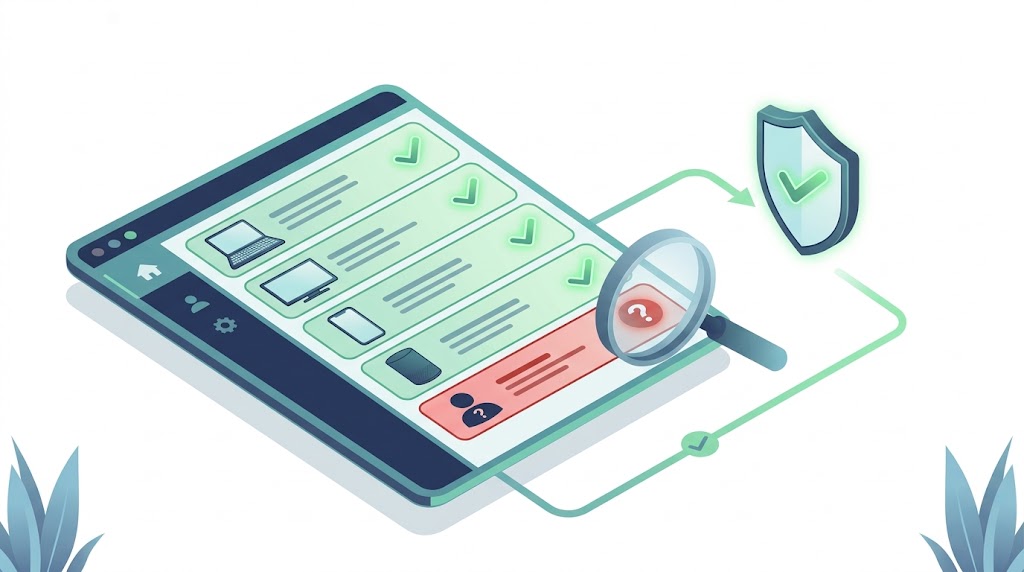
Check the router’s connected-devices list
Your router keeps a list of the devices joined to it, usually under a heading like “connected devices,” “clients,” or “attached devices.” CISA advises using it to watch for unauthorized devices joining or attempting to join your network. Read it through and make sure you can account for every name; a device you do not recognise is worth investigating.
Warning signs of an intruder
The clearest signal is an unknown device in that list — something you cannot match to a phone, laptop, TV, or smart device in your home. The other documented sign is unexpected changes to your router’s settings, which, as the FTC notes, is exactly what an attacker with admin access could make. If settings have changed and you did not change them, treat it as a warning.
If you find an intruder
If something is wrong, re-apply the most important steps straight away: change the router’s admin password and the Wi-Fi network password, then check the device list again to confirm the unknown device is gone. Changing both passwords removes the intruder’s access and locks the admin side behind a password they were never given.
Extra steps for concerned users
Put smart-home and IoT devices on the guest network
Smart plugs, cameras, and other internet-connected gadgets are convenient but often less well protected than a phone or laptop. The NSA recommends segmenting your network — separating your main Wi-Fi, guest Wi-Fi, and IoT devices — and CISA explains the benefit: putting these devices on the guest network prevents them from discovering other devices on your home network and potentially spreading malware. If one smart device is ever compromised, keeping it on the guest network helps contain the damage.
Frequently asked questions
What is the safest Wi-Fi security setting?
WPA3 Personal. CISA calls WPA3 the strongest encryption currently available, and the FTC calls it the newer and best option. If your router or some of your devices do not support it, use WPA2 with AES instead — it is still secure. What you must avoid is an open network, WEP, or the original WPA.
Is WPA3 worth it over WPA2?
Yes, where your devices support it. If only some do, you can set the router to the mixed WPA2/WPA3 mode the NSA describes, which keeps newer devices on WPA3 while older ones still connect. Either way, both are secure choices; the important thing is never to fall back to WEP or leave the network open.
Do I need to change my router password if it came from my ISP?
Yes. The default-credential risk applies just as much to an ISP-provided router: it arrives with factory settings that attackers know. If your router came from your ISP, check with them for how to reach its settings and make the changes — but do change the admin and Wi-Fi passwords. The same guidance applies to ISP-provided wireless equipment.
Can my neighbor use my Wi-Fi if I have a password?
Not if your encryption is WPA2 or WPA3 and your passphrase is strong and private. CISA notes that default or weak passwords are easily found online, and the FTC describes how a leaked password can be reused — so the protection depends on the strength and secrecy of the passphrase, not on the mere fact that one exists. Weak or old encryption (WEP or WPA), or a password that has leaked, does not protect you.
How often should I update my router?
Whenever your manufacturer releases an update — there is no fixed interval. Automatic updates are the easiest way to stay current, so switch them on if your router offers the option. If not, check the manufacturer’s site for new firmware periodically, and confirm that you are running the latest version.
Does a VPN secure my home Wi-Fi?
A VPN protects the traffic between your device and the VPN service, but it does not fix a misconfigured router. If your network is open, or still uses an old default password, a VPN on one device will not close that door. Secure the router first — the steps above — then treat a VPN as an addition, not a substitute.
Quick checklist: 9 steps to a secure home Wi-Fi
- 1. Change the router’s default admin username and password (separate from the Wi-Fi password).
- 2. Turn on the strongest encryption — WPA3 Personal, or WPA2 with AES. Never WEP, never open.
- 3. Change the default Wi-Fi network name (SSID) to something neutral, with no personal details.
- 4. Use a strong Wi-Fi passphrase — at least 16 characters, ideally 20+, or 5–7 unrelated words.
- 5. Update the firmware, and turn automatic updates on if offered.
- 6. Turn off WPS, UPnP, and remote management if you don’t use them.
- 7. Set up a guest network and keep it on, for visitors and smart devices.
- 8. Log out of the admin panel when you’re done.
- 9. Keep the router’s firewall on, and reduce your signal’s reach where practical.
Sources consulted for this guide: FTC — How To Secure Your Home Wi-Fi Network (Dec 2022) and Securing Your Internet-Connected Devices at Home; CISA — Home Network Security (Feb 2021) and Securing Wireless Networks (Feb 2021); CISA — Project Upskill, Module 5: Securing Your Home Wi-Fi and the Project Upskill Glossary; NSA — Best Practices for Securing Your Home Network (PDF, Feb 2023) and its press release.