


Chances are a phishing email is already sitting in your inbox. This beginner's guide shows the eight red flags, with plain examples, how to check a link or sender before you click, and exactly what to do if you already clicked — following official advice from the FTC, CISA, Google, and Microsoft.
Phishing is a scam that uses email or text to trick you into giving up personal or financial information. Scammers pose as a company you trust and invent a reason to rush you, hoping you act before you think. This guide shows the red flags with plain examples, how to check a message before you click, and what to do if you already clicked — following official guidance from the FTC, CISA, Google, and Microsoft.
What is a phishing email (and why it works)
Phishing is a form of social engineering — an attack on people, not just machines. Attackers pose as a trustworthy organisation to get you to hand over information, making the message look like a site or service you already use.
Phishing vs. spam vs. smishing vs. vishing
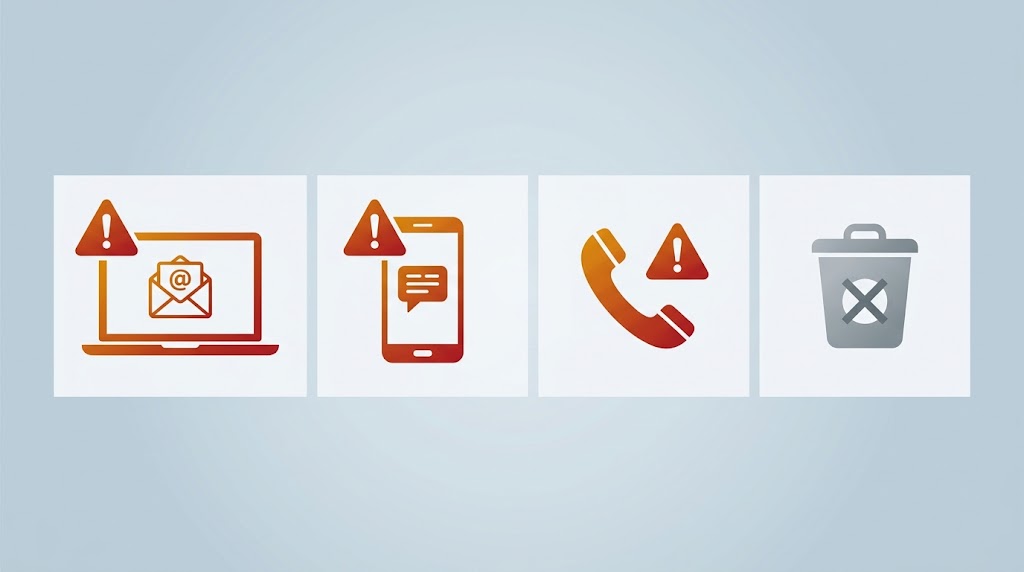
These words are often used interchangeably, but they differ:
- Spam is the broad category of unwanted email — annoying at best, pushing scams or malware at worst.
- Phishing is one dangerous type inside that umbrella: a deceptive message that tries to steal your information or break into your accounts.
- Smishing is phishing sent by text message.
- Vishing is phishing carried out over a voice call.
All phishing is unwanted, but not all unwanted email is phishing — and the difference matters, because phishing is the kind that actively tries to harm you.
Why scammers impersonate brands you trust
Attackers masquerade as trusted sources to steal sensitive information. They borrow a familiar name, colour, and tone, then add false urgency — a blocked account, a missed payment — so you react on emotion instead of thinking. Borrowed trust plus manufactured pressure drives almost every phishing email.
8 warning signs of a phishing email (with examples)
One sign alone is not proof, and a missing sign does not make a message safe. Treat each one as a reason to slow down and verify.
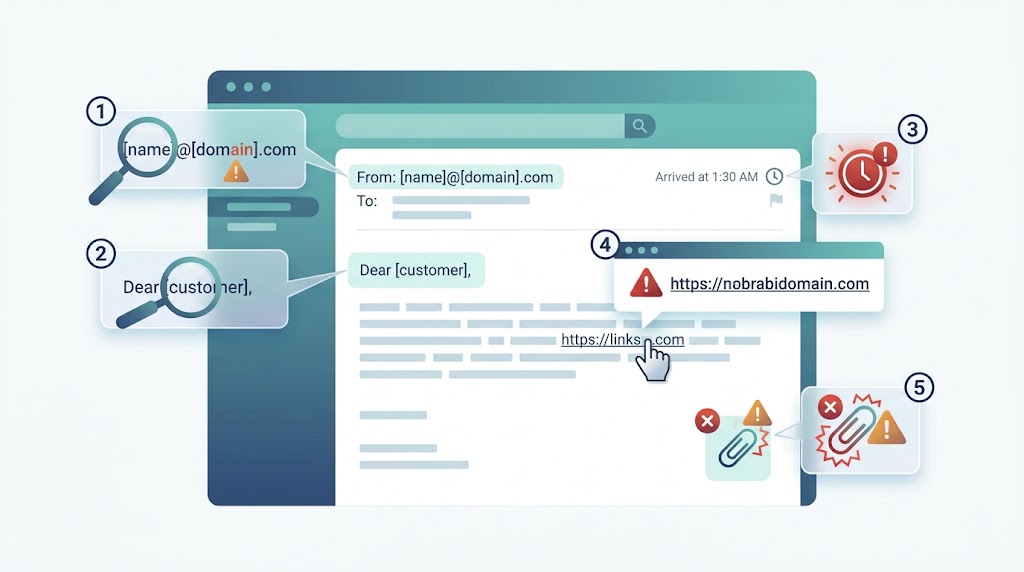
1. The sender address doesn’t match the display name
The name beside an email is just a label the sender can type freely. Check the real address behind it. Example: a message from “Acme Bank Alerts” whose actual address is service@acme-bank-support.example.
2. A generic greeting
A company that holds your account usually knows your name. “Dear Valued Customer” is a strong indicator the sender does not. Example: “Dear Customer” instead of “Hi Priya.”
3. Urgency or threats
Phishing relies on making you act without thinking. Example: “Your account will be suspended within 24 hours unless you confirm your details now.”
4. Links that don’t match their text
A link’s visible text and its real destination can differ. Example: the text reads yourbank.com/login while the real address is a look-alike domain. Cybercriminals often swap characters — how easily micros0ft.com (a zero for the “o”) or rnicrosoft.com could pass a quick glance.
5. Unexpected attachments
Attachments are a common way attackers deliver harmful software. Be wary of unsolicited ones even from people you know. Example: an invoice or résumé you never asked for, asking you to “enable editing” or “enable macros.”
6. Spelling, grammar, and layout mistakes
Poor spelling is one possible clue — but a weak one, not a test. Many phishing emails are perfectly written, so never let clean grammar convince you a message is safe. Example: a stretched logo and mismatched fonts.
7. A request for personal or financial information
Be sceptical of any email asking for sensitive details. Gmail states it won’t ask for your password by email, and the FTC notes legitimate companies won’t email a link to update your payment information. Example: “Confirm your password and PIN to keep your account active.”
8. Too-good-to-be-true offers
Unexpected refunds, prizes, and coupons are a classic lure. Example: “You’ve won a $500 gift card — claim it within the hour.”
A real-world example you can picture
The FTC shares a widely seen pattern in a fake Netflix email: a generic greeting, a claim that the account is on hold over a billing problem, and a link to “update payment details.” That mix — trusted brand, billing scare, fix-it-now link — is what real phishing looks like. (We describe the pattern rather than copying the company’s image or text.)
How to check a link or sender safely (before you click)
Hover to preview the real URL
On a computer, hover over a link without clicking; most email apps show the real destination. If it doesn’t match the link’s description or the company’s real domain, treat it as spoofed.
Go to the official site directly instead
Instead of clicking inside the email, open a new tab, type the company’s address yourself, and log in. An “urgent” issue that vanishes when you check directly was almost certainly a lure.
Use your email provider’s built-in warnings
Reputable services defend you. Gmail, for example, uses Safe Browsing warnings and labels many suspicious messages. If your provider flags a message, take the warning seriously.
What to do if you clicked a phishing link or replied
Don’t panic — acting quickly limits the damage.
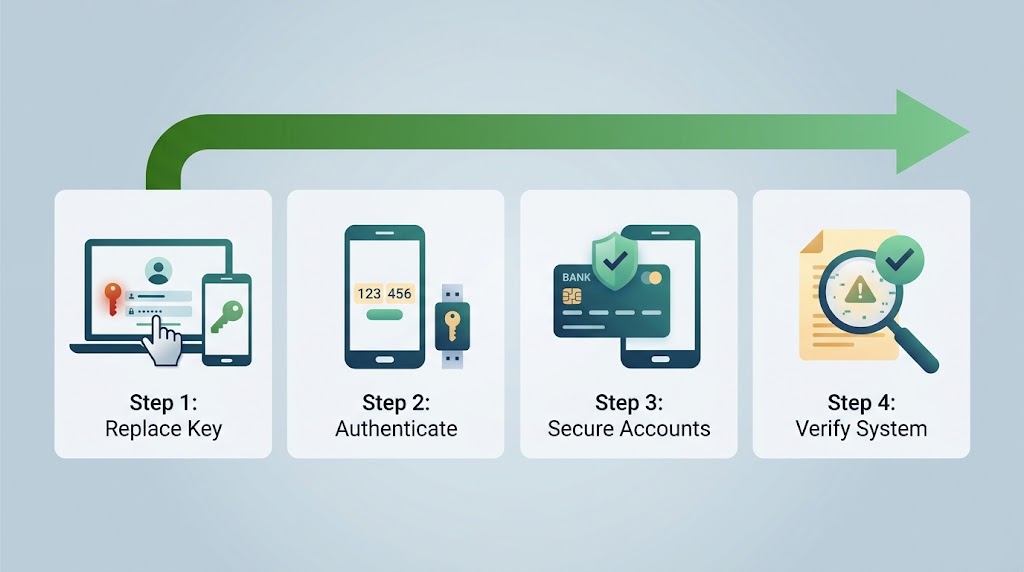
Change the password on the affected account
If you entered a password on a page the email sent you to, change it immediately on the real account — and anywhere else you reused it, since one reused password can unlock many accounts. If you’re unsure whether it has been exposed, you can check whether your password was leaked in a data breach and change anything that shows up.
Turn on two-factor authentication
A second step at sign-in — a code, an app prompt, or a security key — means a stolen password alone is not enough. Turn it on for important accounts, preferring an app or security key over text codes. (A dedicated 2FA setup guide is coming separately.)
Contact your bank and watch for identity theft
If you shared financial details, call your bank or card provider on the number from the back of your card. If you handed over personal information that could be misused, the FTC recommends reporting it at IdentityTheft.gov.
If you opened an attachment, run a security scan
Run a full scan with your device’s security software, and keep it and your operating system set to update automatically. Follow the scan’s instructions before using the device for banking or email again.
How to report a phishing email
Where to send it
Reporting helps protect others and can help shut a campaign down. The FTC recommends:
- Forward the email to the Anti-Phishing Working Group at reportphishing@apwg.org. (This address belongs to the APWG, not the FTC.)
- Forward phishing text messages to 7726 (which spells “SPAM” on a phone keypad).
- Report the attempt to the FTC at ReportFraud.ftc.gov.
Report it inside your email app
In Gmail, use “Report phishing” on the message; most providers offer a similar report or junk button. Reporting also trains the filter to catch similar messages.
How to avoid phishing in the future
Slow down on urgent messages
Urgency is the tool phishing relies on, so make it your cue to pause and verify through an official channel you chose yourself.
Keep your devices updated
Set your operating system, browser, and security software to update automatically — up-to-date software closes the holes attackers use.
Use multi-factor authentication
The best everyday habit is turning on multi-factor authentication across your email, banking, and social accounts, so a stolen password is not enough on its own.
Frequently asked questions
Can you get hacked just by opening an email?
Reading the text of a suspicious email generally won’t hack you. The danger is what you do next: clicking a link, opening an attachment, or replying — even a simple reply confirms your address is active. It is safe to look; just don’t click, open, or reply.
What is the difference between phishing and spam?
Spam is the broad category of unwanted email; phishing is the deceptive type within it that tries to steal information or install malware. They are not the same thing.
Is it safe to click “unsubscribe” on a suspicious email?
For a newsletter you signed up for, unsubscribing is fine. For an unexpected message from an unknown sender, don’t engage — interacting with a scam can confirm your address is live. Report and delete it instead.
How do I know if a link is safe?
Hover to preview the real address before clicking, and check that the domain belongs to the company it claims to be. If in doubt, don’t click — go to the official site directly.
Quick checklist: is this email safe?
- Does the actual sender address match the display name and the real company domain?
- Is it addressed to you by name, or just “Dear Customer”?
- Is it rushing you or threatening a deadline?
- Does the link text match the real URL when you hover over it?
- Is there an unexpected attachment you didn’t ask for?
- Does it ask for a password, PIN, or payment details?
- Does the offer seem too good to be true?
If any box is ticked: don’t click, open, or reply. Verify by visiting the company’s site directly, then report the message and delete it.